
A dirty laptop screen can make everything look blurry. Fingerprints, dust, and oily marks can also make it hard to enjoy videos, read text, or work comfortably. The good news is that you don’t need expensive cleaning products to make your screen look clean again.
Learning how to clean a laptop screen is simple. You only need a soft microfiber cloth and, in most cases, a little distilled water. However, using the wrong cleaner or pressing too hard can damage your screen’s surface.
In this guide, you’ll learn how to clean your laptop screen safely, remove stubborn fingerprints, avoid scratches, and keep your display clean. We’ll also cover common cleaning mistakes and answer questions about water, wet wipes, and alcohol.
What Do You Need to Clean a Laptop Screen?
Before you start, collect a few simple items. Using the right materials will help you clean your laptop without leaving scratches or marks.
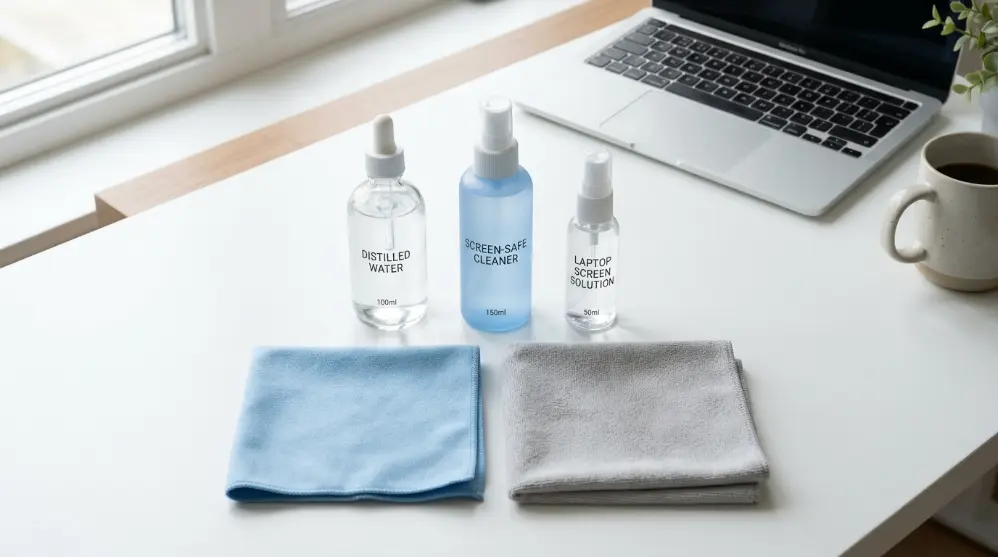
Here are the things you may need:
- Microfiber cloth: Use a soft, clean cloth made for glasses or screens. It won’t scratch your display when used gently.
- Distilled water: This is a good choice for removing light fingerprints and smudges. It also helps reduce water spots.
- Screen cleaning solution: If plain water doesn’t remove oily marks, use a screen cleaner approved for your laptop’s display.
- A second microfiber cloth: Keep another dry cloth ready to remove moisture and finish cleaning.
Important: Check your laptop manufacturer’s cleaning instructions before using any liquid or cleaning product. Different screens have different coatings, so a product that’s safe for one display may damage another.
Avoid using paper towels, tissues, rough clothes, or kitchen towels. These materials can leave tiny scratches on your screen.
How to Clean a Laptop Screen Step by Step
You can clean most laptop screens at home by following a few easy steps. Take your time and never press hard on the display.
Step 1: Turn Off Your Laptop and Unplug It
First, shut down your laptop completely. Don’t clean the screen while it’s running.
Next, unplug the charger and remove any connected cables or devices. If your laptop has a removable battery, follow the manufacturer’s instructions before removing it.
Turning off your laptop makes dust and fingerprints easier to see. It also helps prevent electrical problems if moisture accidentally gets near the device.
Step 2: Remove Loose Dust With a Dry Cloth
Take a clean microfiber cloth and gently wipe the screen.
Use light strokes to remove loose dust and small particles. Don’t rub the screen hard, as dust can cause tiny scratches when pressed against the display.
Start from one side and slowly move across the screen.
Step 3: Lightly Dampen the Microfiber Cloth
If you still see fingerprints or smudges, use a little distilled water.
Put a few drops of water on the microfiber cloth. The cloth should be slightly damp, not wet.
Never spray water or cleaning liquid directly onto your laptop screen. Liquid can run into the screen edges and damage internal parts.
Tip: Don’t pour water onto the cloth until you’ve checked your laptop’s cleaning guide. Some manufacturers recommend specific screen cleaning products.
Step 4: Gently Wipe Away Fingerprints and Smudges
Now, use your slightly damp microfiber cloth to clean the screen.
Move the cloth gently in small circular motions. You can also wipe from top to bottom using light strokes.
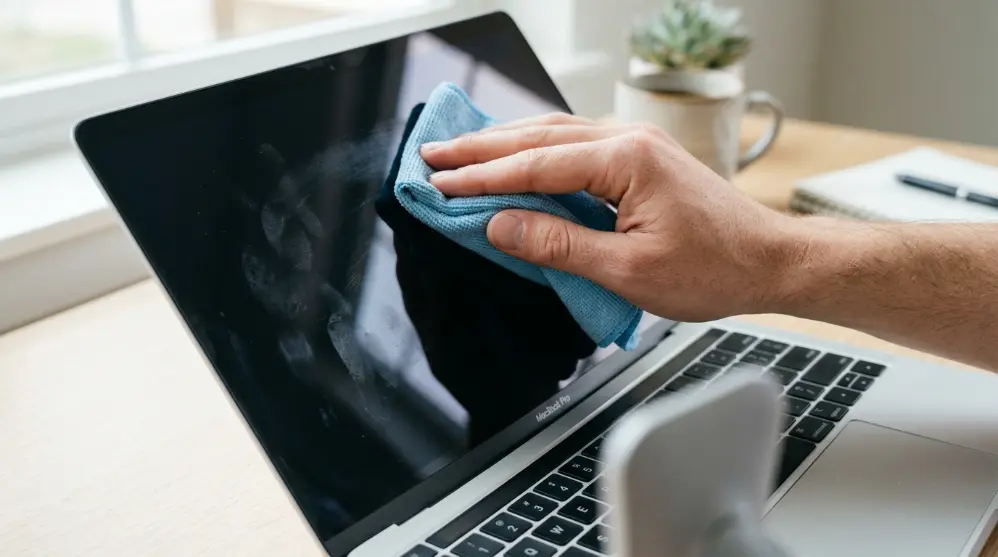
Pay extra attention to areas with fingerprints and oily marks. Don’t press too hard or try to remove every mark with force.
If a fingerprint doesn’t disappear, wipe the area again gently. You may need a second pass with a clean part of the cloth.
Step 5: Dry the Screen With a Clean Cloth
After cleaning, take a second dry microfiber cloth.
Gently wipe away any remaining moisture from the screen. Don’t leave water drops around the edges.
Let the screen air dry completely before closing your laptop or turning it back on.
Once it’s dry, turn on your laptop and check the display. It should look cleaner and clearer.
How to Remove Stubborn Fingerprints From a Laptop Screen
Sometimes, a dry cloth and plain water aren’t enough. Oily fingerprints and sticky marks can be harder to remove.
Here’s what you can do:
- Turn off your laptop and unplug the charger.
- Use a clean microfiber cloth.
- Lightly dampen one corner with distilled water.
- Gently wipe the fingerprint using small circular motions.
- Use a dry part of the cloth to remove moisture.
If the marks are still there, check your laptop manual for an approved screen cleaning solution.
Don’t use strong household cleaners to remove stubborn stains. They may damage the screen’s protective coating.
Also, never scrape dried dirt with your fingernail or a sharp object. This can leave permanent marks.
How to Clean Different Types of Laptop Screens
Not every laptop screen is the same. Some have a matte finish, while others have a glossy or touchscreen display.
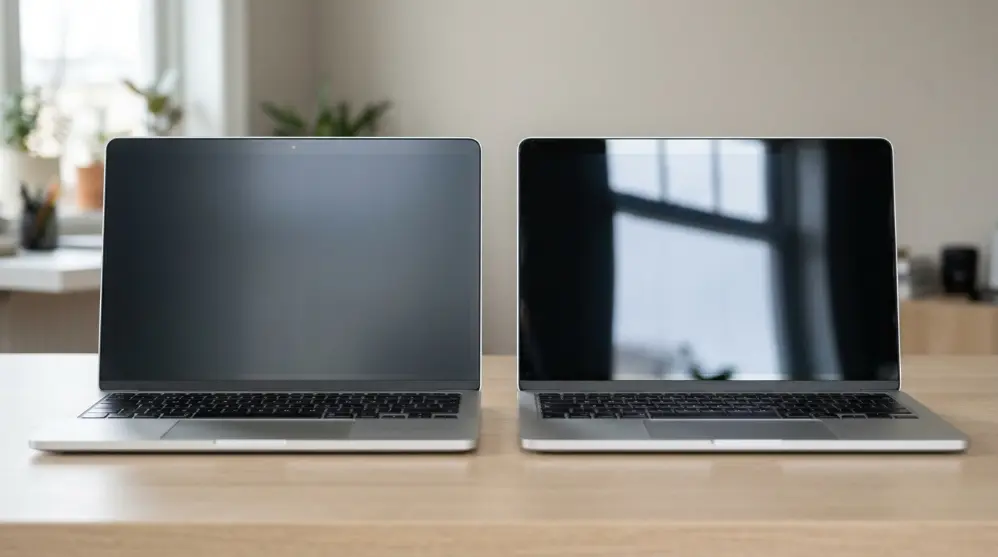
It’s important to know what type of screen you have before cleaning it.
1. How to Clean a Matte Laptop Screen
Matte screens have a surface that helps reduce glare. They’re often found on business laptops and some gaming laptops.
To clean a matte screen:
- Use a soft, dry microfiber cloth first.
- For stubborn marks, lightly dampen the cloth with distilled water if the manual allows it.
- Wipe gently without pressing hard.
- Let the screen dry before using your laptop.
Avoid rough materials and strong cleaning products. They can damage the matte finish.
2. How to Clean a Glossy Laptop Screen
Glossy screens can show fingerprints and dust more easily.
Use a clean microfiber cloth to remove dust. If fingerprints remain, use a slightly damp cloth with distilled water, following the manufacturer’s instructions.
Don’t rub the same spot again and again. Gentle cleaning is enough for most marks.
3. How to Clean a Touchscreen Laptop
Touchscreens collect fingerprints because you use your fingers directly on the display.
To clean one safely:
- Turn off the laptop.
- Use a soft microfiber cloth.
- Remove fingerprints with gentle strokes.
- Use only approved cleaning products when needed.
- Make sure the screen is dry before turning it on.
Some touchscreen laptops have special coatings. Always check the manufacturer’s cleaning advice before using alcohol or other liquids.
What Should You Avoid When Cleaning a Laptop Screen?
Using the wrong cleaning products can damage your laptop screen. Some products may remove the screen’s protective coating, while others can leave marks or scratches.

Here are some things you should avoid.
1. Don’t Use Windex or Window Cleaners
Window cleaners are made for glass, not all laptop displays.
Some contain chemicals that can damage screen coatings. Avoid using Windex or other household glass cleaners unless your laptop manufacturer says they’re safe.
2. Avoid Paper Towels and Tissues
Paper towels and tissues may feel soft, but they can leave tiny scratches on your display.
They can also leave small pieces of paper behind.
Always use a clean microfiber cloth made for screens.
3. Don’t Use Rubbing Alcohol Without Checking First
Rubbing alcohol can damage some laptop screen coatings.
Some manufacturers allow certain alcohol-based cleaners, while others recommend avoiding them.
For example, Apple provides specific cleaning instructions for its displays. So, don’t assume that alcohol wipes are safe for every laptop.
Check your laptop manual before using alcohol.
4. Never Spray Liquid Directly on the Screen
This is one of the biggest cleaning mistakes.
When you spray liquid directly onto the display, it can flow into the screen edges and reach internal parts.
Instead, put a small amount of approved cleaning liquid on your microfiber cloth.
5. Don’t Press Too Hard
Laptop screens are delicate. Pressing too hard can damage the display or cause other problems.
Use gentle movements and let the cloth do the work.
Can You Clean a Laptop Screen With Household Products?
Yes, but you need to be careful.
Some household products may look safe, but they aren’t made for laptop displays.
Here’s a simple guide:
| Cleaning product | Safe to use? |
|---|---|
| Microfiber cloth | Yes |
| Distilled water | Usually, if manual allows |
| Approved screen cleaner | Yes, follow instructions |
| Windex | Avoid |
| Bleach | Avoid |
| Acetone | Avoid |
| Ammonia | Avoid |
| Paper towels | Avoid |
| Rubbing alcohol | Only if manufacturer allows |
| Wet wipes | Avoid unless approved |
Best advice: Keep things simple. Start with a dry microfiber cloth. If that doesn’t work, use a slightly damp cloth with distilled water, provided your laptop’s instructions allow it.

How Often Should You Clean Your Laptop Screen?
You don’t need to clean your laptop screen every day.
For most people, cleaning it once a week or whenever you notice dust and fingerprints is enough.
However, how often you clean it depends on how you use your laptop.
Here are some simple tips:
- Daily use: Remove visible fingerprints and dust when needed.
- Weekly cleaning: Give your screen a gentle wipe with a dry microfiber cloth.
- After accidental spills: Turn off and unplug your laptop. Follow the manufacturer’s safety instructions before attempting any cleaning.
- Before storing your laptop: Make sure the screen is clean and dry.
Keeping your screen clean also makes it easier to read text and enjoy videos without annoying marks.
How to Keep Your Laptop Screen Clean for Longer
Cleaning your laptop is easy, but keeping it clean takes a little care.
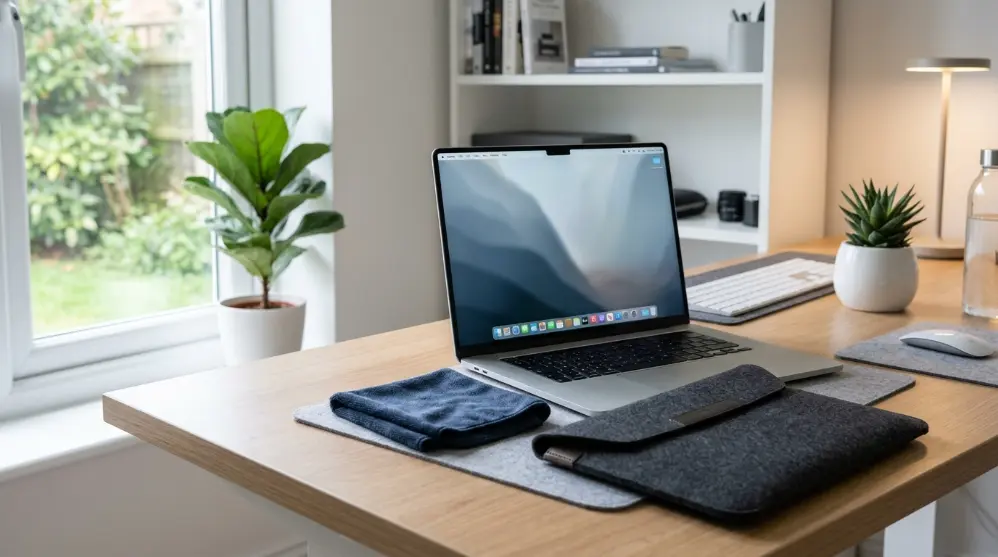
Try these simple habits:
- Wash your hands: Clean hands leave fewer oily fingerprints on your screen.
- Use a laptop sleeve: A good sleeve helps protect your laptop from dust when you’re not using it.
- Don’t touch the display: Avoid touching the screen with your fingers unless it’s a touchscreen.
- Keep your cleaning cloth clean: Wash your microfiber cloth regularly so it doesn’t spread dust and dirt.
- Don’t place objects between the keyboard and screen: This can leave marks or scratches when you close your laptop.
These small habits can help keep your laptop screen looking clean without frequent washing.
While keeping your display clean is important, you should also take care of your laptop’s cooling system. Read our guide on how to clean a laptop fan to remove dust and help prevent overheating.
Frequently Asked Questions About Cleaning a Laptop Screen
Here are answers to some common questions about cleaning laptop screens.
1. What’s the Best Thing to Clean a Laptop Screen With?
A clean microfiber cloth is the best starting point. It removes dust without scratching the display.
For fingerprints and oily marks, use a slightly damp microfiber cloth with distilled water if your laptop manufacturer allows it.
2. Can I Clean My Laptop Screen With Wet Wipes?
It’s better to avoid regular wet wipes.
Many contain alcohol, fragrances, or other ingredients that may damage your screen’s protective coating.
Use a microfiber cloth and an approved screen cleaner instead.
3. Can I Use Windex on My Laptop Screen?
No, you should avoid Windex and similar window cleaners.
They may contain chemicals that can damage your display’s protective coating. Use distilled water and a microfiber cloth if your laptop manual allows it.
4. Can I Use Alcohol Wipes to Clean My Laptop Screen?
It depends on your laptop model.
Some manufacturers allow certain alcohol-based cleaners, while others warn against them. Alcohol may damage anti-glare or other protective coatings.
Always check your manufacturer’s instructions before using alcohol wipes.
5. How Do I Clean My Laptop Screen Without a Microfiber Cloth?
If you don’t have a microfiber cloth, it’s better to wait until you can get one.
Avoid using tissues, paper towels, or rough clothes because they may scratch your display.
A clean, soft cloth specifically approved for delicate screens is a better choice.
6. How Do I Remove Fingerprints From My Laptop Screen?
Follow these steps:
- Turn off your laptop.
- Take a clean microfiber cloth.
- Slightly dampen it with distilled water if allowed.
- Gently wipe the fingerprints.
- Use a dry cloth to remove moisture.
Don’t press hard or spray water directly onto the display.
7. Can I Use Tap Water to Clean My Laptop Screen?
Distilled water is a better choice because it contains fewer minerals than regular tap water.
Tap water may leave spots or marks after drying. However, always follow your laptop manufacturer’s cleaning instructions.
8. Can I Clean My Laptop Screen While It’s On?
It’s better to turn off your laptop before cleaning it.
A powered-off screen makes dust and fingerprints easier to see. It also reduces the risk of electrical problems if moisture gets near the device.
Final Thoughts
Learning how to clean a laptop screen doesn’t have to be difficult. You don’t need expensive products or special tools to remove everyday dust and fingerprints.
Start with a clean microfiber cloth. If you need more cleaning power, use a little distilled water or an approved screen cleaner, depending on your laptop manufacturer’s instructions.
Most importantly, avoid harsh chemicals, rough materials, direct sprays, and too much pressure.
Take a few minutes to clean your screen properly, and it’ll stay clear and look better for longer.