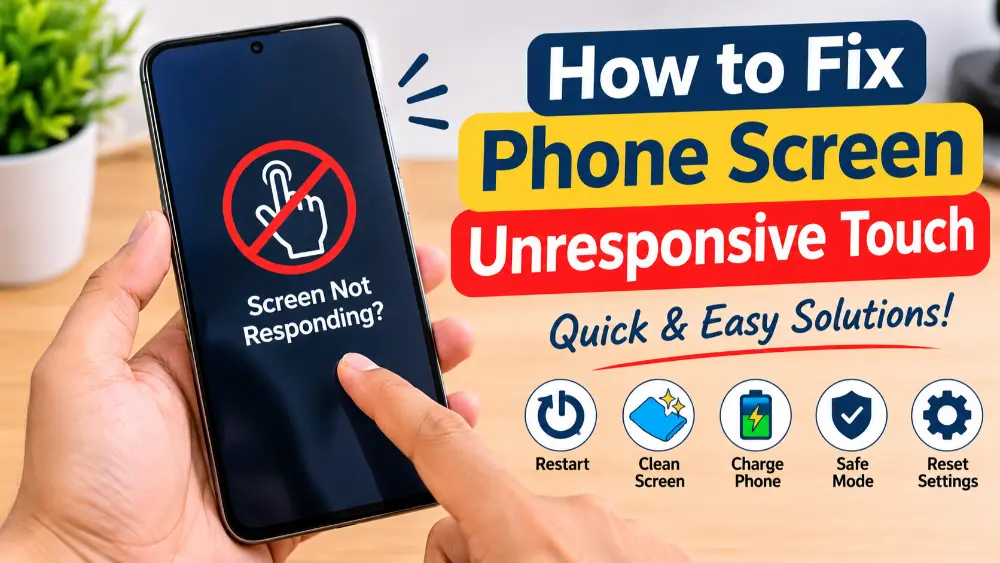
Have you ever tried tapping your phone screen, but nothing happened? Maybe the screen is frozen, some areas don’t respond, or you can see everything but can’t open any apps. It’s frustrating, especially when you need to make a call or send an important message.
The good news is that you may not need a new phone or an expensive repair. Sometimes, a simple restart, a dirty screen, or a damaged screen protector can cause the problem.
If you’re wondering how to fix phone screen unresponsive touch, you’re in the right place. In this guide, you’ll learn simple ways to get your touchscreen working again on Android and iPhone.
We’ll start with easy fixes and move to more advanced solutions. You don’t need technical skills to try most of them.
Why Is Your Phone Screen Not Responding to Touch?
Before trying any fixes, it’s helpful to understand what might be causing the problem.
Your phone uses a touchscreen to detect your finger movements. When something blocks or interrupts this process, the screen may stop responding.
Here are some common reasons:
- Dirt or moisture: Dust, oil, water, or sweat can affect touch response.
- Damaged screen protector: A cracked or poorly fitted protector may block touch input.
- Software problems: A frozen app or system error can make the screen stop working.
- Low battery: Very low power may cause unusual phone behavior.
- Overheating: A phone that’s too hot may slow down or stop responding properly.
- Damaged screen: A drop or strong impact can damage the touchscreen.
- Faulty apps: Some recently installed apps may cause freezing or other problems.
Overheating can also affect your phone’s performance and touch response. If your device gets unusually hot, read our guide on why your phone is overheating and how to fix it.
The important thing is to find out whether the issue is caused by software or physical damage.
1. Clean Your Phone Screen Properly

Start with the easiest solution. A dirty or wet screen can make it difficult for your phone to detect your fingers.
Even a small amount of oil, sweat, or water can affect touch response.
Follow these steps:
- Turn off your phone if possible.
- Take a clean, soft microfiber cloth.
- Gently wipe the entire screen.
- Pay extra attention to the corners and edges.
- Make sure the screen is completely dry before using it again.
Avoid using rough clothes, paper towels, or strong cleaning chemicals. They can damage the screen’s protective coating.
If your phone has moisture around the edges, let it dry naturally. Don’t use a hair dryer or place it near a heater.
Quick tip: Try using your phone with clean, dry fingers. If the touchscreen starts working, moisture or dirt may have been the problem.
2. Remove Your Phone Case and Screen Protector
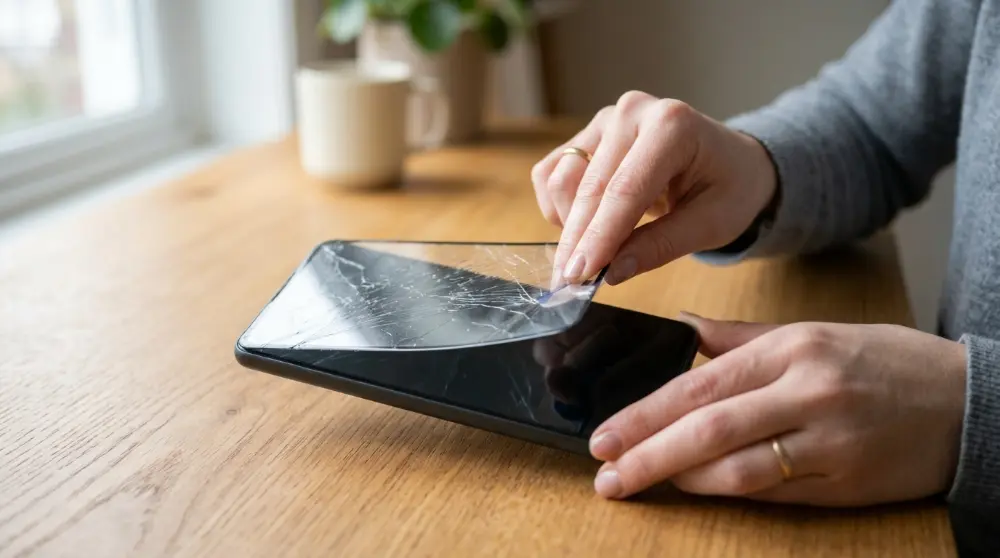
Sometimes, your phone case or screen protector can cause touch problems. This is more common with thick cases, cracked tempered glass, or poorly fitted protectors.
A screen protector may also collect dirt or moisture around its edges.
Here’s what you can do:
- Remove your phone case.
- Check whether the screen protector has cracks or bubbles.
- If it’s damaged, carefully remove it.
- Clean the screen with a microfiber cloth.
- Try touching different areas of the display.
Also, disconnect USB-C, Lightning, or other accessories connected to your phone.
If your screen starts working normally after removing these items, you may have found the cause.
Important: Don’t press hard on the display to test it. Too much pressure can make existing damage worse.
3. Force Restart Your Phone
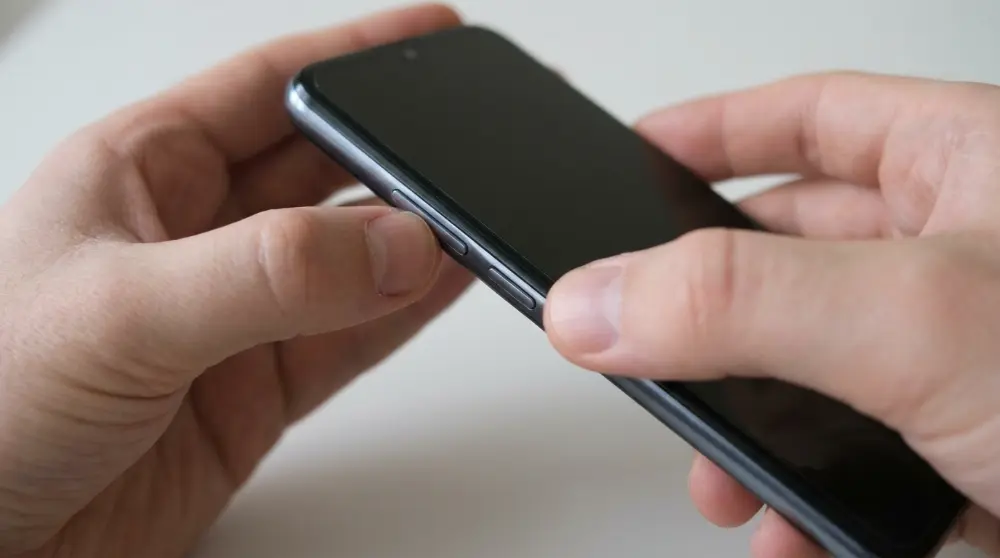
If your phone screen is frozen and doesn’t respond to taps, a force restart is one of the best fixes to try.
It can clear temporary software problems and restart the phone without deleting your photos, apps, or personal files.
The button combination depends on your phone model.
How to Force Restart an Android Phone
For many Android phones, including Samsung models:
- Press and hold the Power and Volume Down buttons together.
- Keep holding them for around 10 to 15 seconds.
- Wait until the screen turns off.
- Release the buttons when the phone logo appears.
- Let your phone start normally.
Some Android phones use different button combinations. If this doesn’t work, check your manufacturer’s instructions.
How to Force Restart an iPhone
If you have an iPhone with Face ID, follow these steps:
- Quickly press and release the Volume Up button.
- Quickly press and release the Volume Down button.
- Press and hold the Side button.
- Keep holding it until the Apple logo appears.
- Release the button and wait for your iPhone to restart.
For older iPhones, the process is different:
- iPhone 7 and 7 Plus: Hold the Side and Volume Down buttons together until the Apple logo appears.
- iPhone 6s and earlier: Hold the Home and Power buttons together until the Apple logo appears.
A force restart doesn’t normally erase your data, so it’s safe to try before considering a factory reset.
4. Charge Your Phone for at Least 30 Minutes
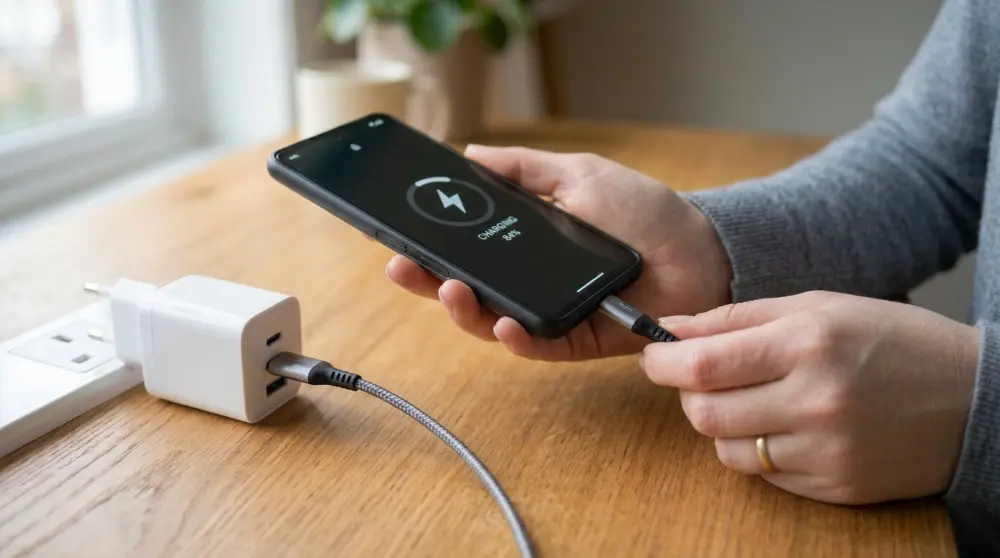
A very low battery can sometimes cause unusual phone behavior. Your phone may freeze, become slow, or fail to respond properly.
Try charging it before moving to more advanced fixes.
Follow these steps:
- Connect your phone to a working wall charger.
- Use a reliable charging cable.
- Leave it connected for 15 to 30 minutes.
- Check whether the charging symbol appears.
- Try turning it on or restarting it again.
If your phone doesn’t charge, test another cable and power adapter.
Avoid using damaged charging cables or loose power connections. Also, if your phone is wet or shows signs of battery damage, don’t connect it to a charger until it’s safe to do so.
5. Start Your Android Phone in Safe Mode

Sometimes, a recently installed app can cause your Android phone to freeze or behave strangely.
Safe Mode helps you check whether a downloaded app is causing the problem. It temporarily disables most third-party apps while keeping the basic phone functions available.
Here’s how to try it:
- Open the power menu if your screen allows it.
- Press and hold the Power off option.
- Select Safe Mode if the option appears.
- Wait for your phone to restart.
- Test whether the touchscreen works normally.
If the touch screen works in Safe Mode, a downloaded app may be causing the issue.
Uninstall recently installed or suspicious apps one by one. Restart your phone normally after removing them.
Keep in mind that Safe Mode steps can differ between Android brands and models.
6. Check for Software Updates
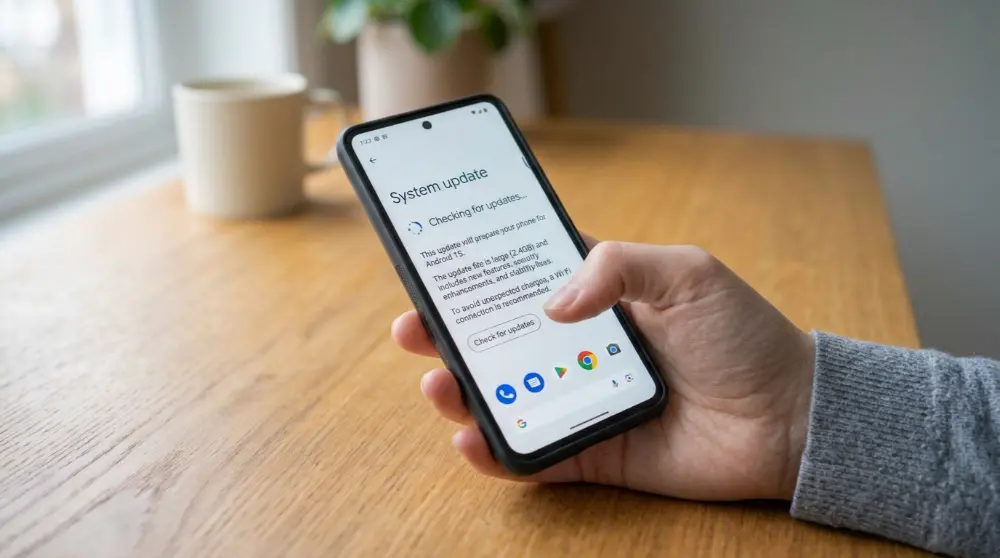
An outdated operating system can sometimes cause bugs, freezing, and touchscreen problems. Installing the latest software update may fix these issues.
If your screen responds sometimes, check for available updates.
On Android
- Open Settings.
- Go to System or Software Update.
- Select Check for Updates.
- Download and install an update if one is available.
- Restart your phone after installation.
On Samsung phones, you can usually find this option under Settings > Software update > Download and install.
On iPhone
- Open Settings.
- Tap General.
- Select Software Update.
- Check whether a new iOS version is available.
- Follow the instructions to install it.
Make sure your phone has enough battery power and a stable internet connection before updating.
What if your screen doesn’t respond at all?
You may be able to control some Android phones with a USB mouse and an OTG adapter. This can help you open Settings and check for updates without using your fingers.
7. Use a USB Mouse If Your Touchscreen Is Not Working

What if your phone screen shows everything clearly, but you can’t tap anything?
A USB OTG adapter can help. It lets you connect a regular computer mouse to many Android phones.
Once connected, a small pointer may appear on your phone screen. You can move it with the mouse and click apps, settings, and other options.
Follow these steps:
- Get a USB OTG adapter that matches your phone’s charging port.
- Connect the adapter to your phone.
- Plug a wired USB mouse into the adapter.
- Wait for the mouse pointer to appear.
- Use the mouse to control your phone.
This method can help you unlock your phone, back up important files, or change settings.
However, some phones may not support this feature, and you may still need to unlock the device first.
Note: iPhones don’t generally support the same simple USB mouse setup as Android phones. Their accessibility options and compatible accessories work differently.
8. Reset Your Phone Settings

If your touchscreen still behaves strangely, incorrect settings may be part of the problem.
Resetting your phone’s settings can help fix certain software issues without removing your personal photos, videos, or apps.
On Samsung Phones
- Open Settings.
- Tap General management.
- Select Reset.
- Choose Reset all settings.
- Follow the instructions.
On iPhone
- Open Settings.
- Tap General.
- Select Transfer or Reset iPhone.
- Tap Reset.
- Choose Reset All Settings.
Keep in mind that resetting settings can remove saved preferences, Wi-Fi settings, and other custom settings. It doesn’t normally delete your personal files.
Also, menu names may differ depending on your phone model and software version.
If your screen is completely unresponsive, you may need a mouse or another supported control method to access these options.If none of the fixes work, your phone may have a hardware pro
9. Perform a Factory Reset (Last Software Option)

A factory reset returns your phone to its original software settings. It can help if a serious software problem is causing the touchscreen to freeze.
However, don’t rush into this step.
A factory reset deletes personal data stored on your phone, including:
- Photos and videos
- Downloaded apps
- Messages and files
- Saved settings
- Other personal information
Before resetting your device, back up your important data if possible.
When Should You Factory Reset Your Phone?
Consider this option only when:
- Cleaning the screen doesn’t help.
- A force restart doesn’t fix the issue.
- Safe Mode doesn’t improve touch response.
- Software updates and settings fixes haven’t worked.
- You suspect a serious software problem.
If your phone has a cracked screen or physical damage, a factory reset probably won’t solve the problem.
Important: If you can’t back up your files, contact a repair professional before resetting your phone. You don’t want to lose important data unnecessarily.
10. Get Your Phone Screen Checked by a Professional
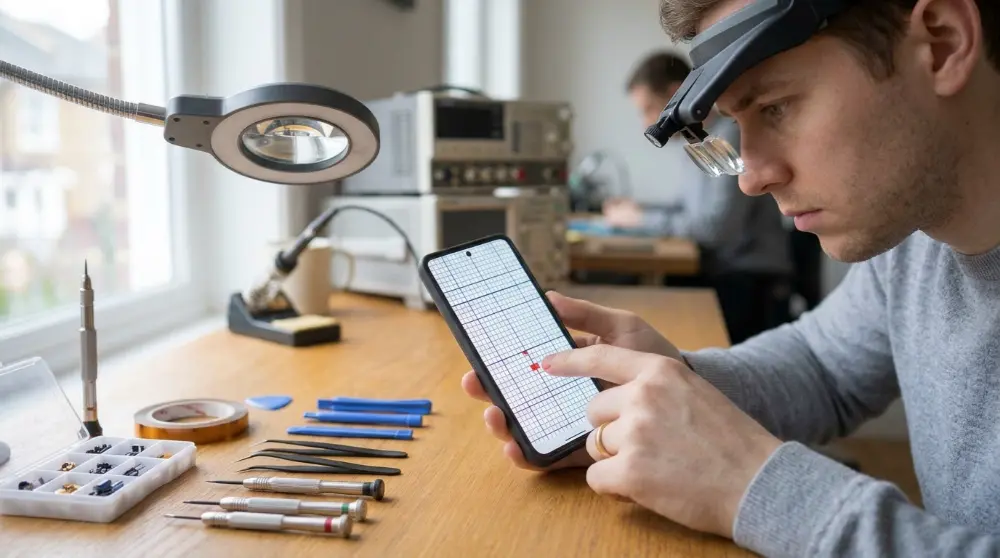
If none of the fixes work, your phone may have a hardware problem. In this case, it’s better to visit a trusted repair shop or an authorized service center.
A touchscreen can stop working because of:
- Cracked display: A hard fall can damage the touchscreen, even if the glass looks fine.
- Damaged digitizer: The digitizer detects your finger movements. If it stops working, the screen may not respond to touch.
- Loose display connector: A phone drop can sometimes loosen the connection between the screen and the main board.
- Water damage: Moisture inside the phone can damage touchscreen parts.
- Internal hardware failure: A faulty display or other internal part may cause touch problems.
Signs Your Phone Needs Screen Repair
Look for these warning signs:
- Only half of the screen responds to touch.
- Some areas don’t work, even after restarting.
- The screen has cracks or black spots.
- Touch input happens by itself.
- The display works, but you can’t control anything.
- Your phone stopped responding after a drop or water exposure.
Don’t try to open the phone or repair its internal parts yourself. A technician can check the display, digitizer, and internal connections to find the real problem.
If the screen needs replacement, ask for a repair estimate before agreeing to the work.
What to Do If Only Part of Your Phone Screen Is Not Responding?

Sometimes, the entire screen doesn’t stop working. You may notice that the top, bottom, or one side of the display doesn’t respond.
For example, you might be able to open apps but can’t type certain letters on your keyboard.
Try these steps:
- Remove the screen protector and phone case.
- Clean the display with a microfiber cloth.
- Restart your phone.
- Test different areas of the screen.
- Check whether the problem happens in every app.
If the same area keeps ignoring your touch, the digitizer may be damaged.
You can also try a touchscreen test app on Android to check which areas aren’t responding. However, these apps can’t always identify the exact hardware problem.
If the issue continues, get the display checked by a professional.
Frequently Asked Questions
1. How do I fix a phone screen that isn’t responding to touch?
Start by cleaning your screen and removing the case and screen protector. Then force restart your phone. If the problem continues, try Safe Mode on Android or check for software updates.
2. Why is my phone screen not responding to touch but the display is on?
This can happen because of a software freeze, damaged digitizer, faulty screen protector, or internal hardware problem. Try a force restart first. If the screen still doesn’t respond, it may need professional repair.
3. How do I unfreeze my phone touchscreen?
A force restart is usually the first thing to try. On many Android phones, hold Power and Volume Down together for around 10 to 15 seconds. On newer iPhones, press Volume Up, press Volume Down, and hold the Side button until the Apple logo appears.
4. How do I fix an unresponsive Samsung touch screen?
Clean the display, remove the screen protector, and force restart your Samsung phone by holding Power and Volume Down together. You can also try Safe Mode to check whether a downloaded app is causing the problem.
5. Can a phone touchscreen be fixed without replacing the screen?
Yes, sometimes. If the problem comes from dirt, moisture, a software error, or a screen protector, you may fix it without replacing anything. However, a damaged digitizer or display may need repair or replacement.
6. Will a force restart delete my photos and apps?
No. A normal force restart doesn’t delete your photos, videos, apps, or personal files. It simply forces your phone to shut down and start again.
7. What should I do if my phone screen stops working after getting wet?
Turn off your phone if you can do so safely. Disconnect the charger and other accessories. Don’t use a hair dryer or try to charge a wet phone. Get professional help, especially if moisture may have entered the device.
Final Thoughts
An unresponsive touchscreen can be annoying, but it doesn’t always mean your phone is broken.
Start with simple solutions like cleaning the display, removing the screen protector, and force restarting your phone. If that doesn’t work, try Safe Mode, software updates, or other fixes based on your device.
However, if your phone has physical damage or certain screen areas never respond, get it checked by a professional.
The best approach is to start with the easiest fixes and avoid a factory reset or screen replacement until you know what’s causing the problem.