
Have you ever had an app idea but didn’t know how to turn it into a real app? Maybe you want to build a shopping app, a fitness tracker, a learning app, or a tool for your business. The good news is that you don’t need to be a coding expert to get started.
Today, there are several ways to create an app. You can use AI tools, build it with no-code platforms, or write code yourself. The best choice depends on your idea, skills, time, and budget.
In this guide, you’ll learn how to create an app from scratch, choose the right tools, plan your design, build your first version, and share it with users. Let’s get started!
1. Start With a Clear App Idea
Before you build anything, you need a good idea. Don’t rush to download an app builder or start writing code.
First, think about what problem your app will solve.
For example:
- Shopping app: Helps people buy products online.
- Fitness app: Helps users track daily exercise.
- Learning app: Helps students learn new skills.
- Food delivery app: Helps people order meals.
- Budget app: Helps users track their money.
Your first app doesn’t need lots of features. It should do one main thing well.
Ask yourself these three questions:
- What problem will my app solve?
- Who will use this app?
- Why would someone choose my app instead of another one?
Also, search the Google Play Store and Apple App Store for similar apps. Look at their features, user reviews, and common complaints. This can help you find ways to make your app more useful.
For example, if you’re planning to build a productivity or study app, explore our list of the best note-taking apps to understand the features and tools that existing apps offer.
Quick tip: Write your app idea in two or three simple sentences. If you can’t explain what your app does, you may need to make the idea clearer.
2. Choose What Type of App You Want to Create
Before choosing a tool, decide where people will use your app. There are three common options.

Mobile App (Android and iOS)
A mobile app runs on a smartphone or tablet.
For example, WhatsApp, Instagram, and Google Maps are mobile apps.
You can build an app for:
- Android phones and tablets.
- iPhones and iPads.
- Both Android and iOS devices.
If you want to reach more mobile users, consider building for both platforms.
Web App
A web app works through a web browser. Users don’t always need to download it from an app store.
Examples include online calculators, project management tools, and booking systems.
A web app is a good choice if you want people to use your service on computers, tablets, and phones.
Desktop App
A desktop app runs on a computer, such as a Windows PC or Mac.
Examples include photo editing software, accounting programs, and video editing tools.
Choose the type that best matches your users’ needs. You don’t need to build for every device at the beginning.
3. Choose the Best Way to Create Your App
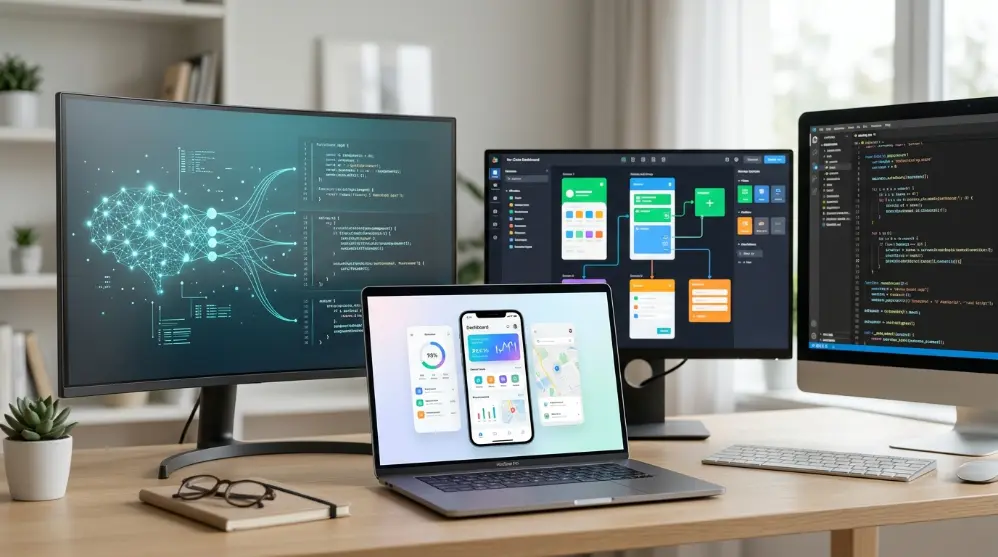
Now that you have an app idea, it’s time to choose how you’ll build it. You have three main options. Each one works differently.
Option 1: Use an AI App Builder
AI app builders make app creation easier, even if you don’t know how to code.
You simply explain your idea in normal words. The AI tool then helps create the app’s design, features, and code.
For example, you can type:
“Create a simple fitness app where users can track their daily workouts, set goals, and check their progress.”
The AI builder can use this description to create a starting version of your app.
Some popular AI app-building tools include:
- Base44: Helps you create web apps by describing what you want.
- Google AppSheet: Lets you build apps using data from spreadsheets and other sources.
- Code.org App Lab: Helps beginners create simple apps and learn programming.
- App Studio: Provides tools for creating content-based apps.
AI builders are useful for beginners, small projects, and quick ideas. However, you should still check the app, test its features, and fix any mistakes before sharing it.
Option 2: Use a No-Code App Builder
No-code platforms let you create apps without writing programming code.
They use simple visual tools. You can drag buttons, images, forms, and other parts onto a screen.
Some popular no-code platforms are:
- Bubble: Useful for building web apps and online services.
- Glide: Helps turn data into simple apps.
- Adalo: Lets you create mobile and web apps using visual tools.
For example, if you want to create a booking app, you can add:
- A page where users enter their details.
- A calendar to choose a date.
- A button to confirm bookings.
- A page to view booking details.
You can connect these parts without writing code.
No-code tools are a good choice if you want to build an app quickly. But some platforms have limits when you need special features or more control.
Option 3: Create an App With Coding
If you want more control over your app, you can build it by writing code.
This method takes more time because you’ll need to learn a programming language and understand how apps work.
Here are some common choices:
| App Type | Language or Tool |
|---|---|
| Android apps | Kotlin |
| iPhone apps | Swift |
| Android and iOS | Flutter or React Native |
| Web apps | HTML, CSS, JavaScript |
For Android development, you can use Android Studio with Kotlin.
For iPhone development, you can use Xcode with Swift. You’ll need a Mac to run Xcode.
If you want one codebase for Android and iOS, Flutter and React Native are popular choices.
Coding is a good option for complex apps, custom features, and long-term projects.
Part 2 of 3 · Approximately 500 words
4. Plan Your App Features and Design
Before building your app, decide what it should look like and what users can do with it.
Start by making a list of the main features. Don’t add everything at once.
For example, if you’re creating a food delivery app, your first version might need:
- User sign-up and login.
- A list of available food.
- Food details and prices.
- An order button.
- An order history page.
Once you’ve listed the features, sketch how each screen will look.

You can use paper and a pencil or a design tool like Figma.
A simple design plan helps you understand how users will move from one screen to another.
Remember: Keep your first design clean. Too many buttons and features can make your app hard to use.
5. Build Your First App (MVP)
Now it’s time to start building!
You don’t need to create a perfect app on your first try. Start with a small version that has only the most important features.
This first version is called a Minimum Viable Product (MVP). It helps you check whether people find your app useful.

Follow these steps:
- Create a new project in your chosen app builder or coding tool.
- Add the main screens from your design.
- Create buttons, forms, and other basic features.
- Connect your app to a database if it needs to save information.
- Add the main actions users need to complete their tasks.
- Preview your app and make changes where needed.
For example, if you’re building a simple expense tracker, start with three features:
- Add daily expenses.
- Show total spending.
- View saved expenses.
You can add charts, reports, and other features later.
6. Test Your App Before Launching
Building an app isn’t enough. You also need to make sure everything works properly.
A small mistake can stop users from signing in, saving information, or using an important feature.
Test your app by checking these things:
- Do all buttons work?
- Can users create an account and log in?
- Does the app save information correctly?
- Does it work on different screen sizes?
- Are there any broken pages or errors?
- Does the app protect users’ personal information?
Ask a few people to try your app. Watch how they use it and listen to their feedback.

If you build an Android app, you can test it using Android Studio’s emulator or a real Android phone. For iPhone apps, use the tools available in Xcode.
You can also use automated tests to find problems before users experience them.
Helpful tip: Test your app after every major change instead of waiting until the end.
A quick note: Before choosing a platform, check whether it creates a web app or a true native mobile app. These aren’t the same thing. Some builders let people open an app through a phone browser, while others support publishing native apps to app stores.
7. Publish Your App on the App Store or Google Play
Once your app is ready and tested, you can share it with other people.
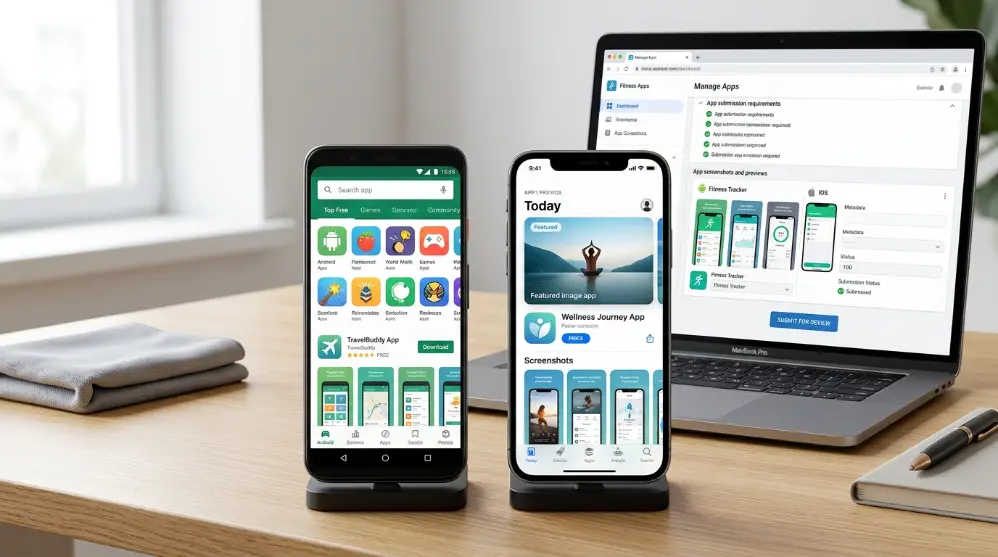
If you’ve created a mobile app, you can publish it on an app store. If you’ve built a web app, you can host it online and share its link.
Here are the main options:
Publish an Android App
You can publish your Android app through the Google Play Store.
Basic steps include:
- Create a Google Play Console developer account.
- Prepare your app and its store listing.
- Add your app name, description, screenshots, and icon.
- Complete the required app information and testing steps.
- Submit your app for review.
Google checks your app before making it available to users. You must also follow its developer policies.
Publish an iPhone App
To publish an iPhone app, you need an Apple Developer account.
Follow these steps:
- Join the Apple Developer Program.
- Prepare your app using Xcode.
- Add your app name, description, screenshots, and other details.
- Submit your app through App Store Connect.
- Wait for Apple’s review.
Apple checks apps to make sure they follow its App Store rules.
What If You Create a Web App?
You don’t need to publish a web app on Google Play or Apple’s App Store.
Instead, you need a hosting service and a domain name if you want a custom web address.
Once your web app is online, users can open it through their browsers.
8. How Much Does It Cost to Create an App?
The cost depends on your app’s features, design, development method, and size.
A simple app made with a free AI or no-code tool may cost very little to start. However, advanced features, paid plans, hosting, databases, and professional development can increase the cost.
Here’s what you may need to pay for:
- App builder: Some tools offer free plans, while others charge monthly fees.
- Development: Hiring a developer can increase your budget.
- Hosting: Web apps may need a hosting service.
- Database: Apps that save user information may need database services.
- App store accounts: Google and Apple have their own developer account fees.
- Maintenance: You’ll need to fix bugs and update your app over time.
Don’t spend money on extra features before testing your main idea. Start small and increase your budget as your app grows.

9. How Can You Make Money From Your App?
Once people start using your app, you can think about earning money from it.
Here are some common ways to make money:
- Ads: Show ads inside your app and earn money from them.
- Subscriptions: Charge users a monthly or yearly fee.
- In-App Purchases: Let users buy extra features or content.
- Paid Downloads: Charge users before they download your app.
- Selling Products: Use your app to sell physical or digital products.
Choose a method that makes sense for your app. Don’t add too many ads or paid features because they can make users leave.
Frequently Asked Questions (FAQs)
1. Can I create an app for free?
Yes. You can start with free AI app builders, no-code tools, or coding software. However, some features, hosting services, and app store accounts may require payment.
2. Can I create an app without coding?
Yes. Tools like Bubble, Glide, Adalo, and AppSheet let you build apps without writing code.
3. How long does it take to create an app?
A simple app may take a few days or weeks. A larger app with many features can take several months or longer. The time depends on your skills, design, and app requirements.
4. Can one app work on Android and iPhone?
Yes. You can use cross-platform tools like Flutter and React Native to build apps for both platforms using one main codebase.
5. Do I need a developer account to publish my app?
Yes, if you want to publish on the main app stores. Google Play currently charges a one-time $25 registration fee, while Apple’s Developer Program costs $99 per year. Play Console Help+1
6. Can I make money from my own app?
Yes. You can earn money through ads, subscriptions, paid downloads, in-app purchases, or product sales. However, your app needs to offer something useful to attract and keep users.
Conclusion
Creating an app isn’t as difficult as it may seem. You just need a clear idea, the right tools, and a simple plan.
If you’re a beginner, start with an AI app builder or no-code platform. If you want more control, learn programming and build your app with coding tools.
Most importantly, don’t try to build a perfect app on your first attempt. Start with a few useful features, test them, listen to users, and improve your app over time.
Your first app doesn’t have to be perfect. It just needs to solve a real problem.