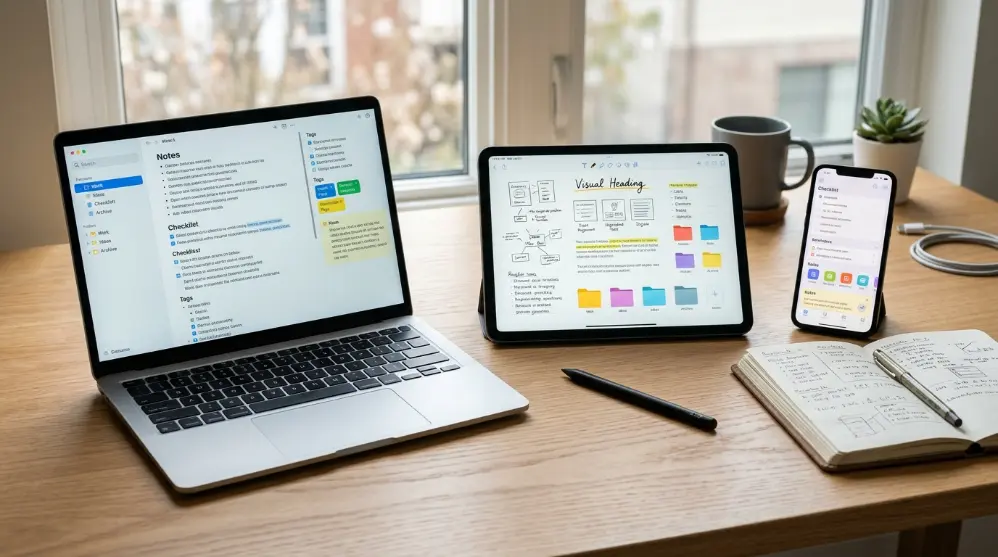
Have you ever written down something important but couldn’t find it when you needed it? Maybe it was a school note, a work idea, a shopping list, or an important reminder.
That’s where a good note-taking app can help.
A note-taking app lets you save your ideas, make lists, write important information, and find your notes whenever you need them. You can use it on your phone, tablet, or computer without carrying a notebook everywhere.
But with so many options available, choosing the right one isn’t always easy. Some apps are great for students, while others work better for business owners, office workers, and people who like to write by hand.
In this guide, we’ll look at the 10 best note taking apps in 2026. We’ll compare their main features, good points, drawbacks, and free options so you can find the right app for your needs.
Quick Comparison of the Best Note Taking Apps
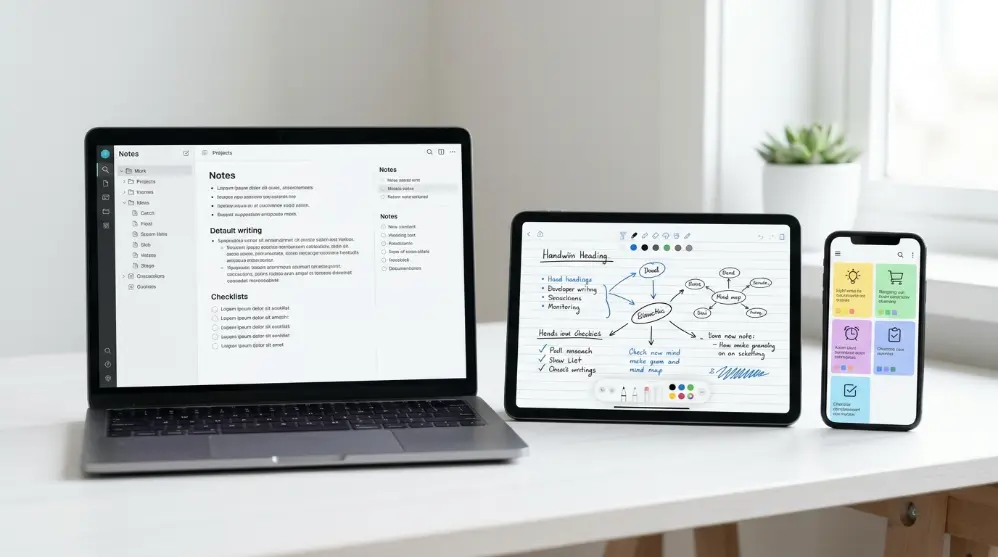
Here is a quick look at some popular note-taking apps and what they’re best for.
| App | Best For |
|---|---|
| Microsoft OneNote | Free notes and schoolwork |
| Apple Notes | iPhone, iPad, and Mac users |
| Google Keep | Quick notes and reminders |
| Notion | Notes, tasks, and projects |
| Obsidian | Connecting ideas and personal knowledge |
| Goodnotes | Handwritten notes on tablets |
| Notability | Handwriting and audio notes |
| Joplin | Free and open-source notes |
| Evernote | Saving documents and web pages |
| Simplenote | Simple text notes |
Each app has something different to offer. You don’t need all its features. You just need one that makes your daily work easier.
How to Choose the Best Note Taking App?
Before picking an app, think about how you usually take notes. An app that’s perfect for one person may not work well for someone else.
Here are a few things to check:
- Easy to use: You should be able to open the app and write a note without wasting time.
- Works on your devices: Check if the app supports your phone, tablet, and computer.
- Syncing: Your notes should be available on your other devices when you need them.
- Search: A good search tool helps you find old notes quickly.
- Organization: Folders, tags, and notebooks can help keep your notes in order.
- Free plan: Check what you can do without paying.
- Offline access: It’s helpful to read and write notes when you don’t have an internet connection.
Also, think about what you want to save. Do you mostly write short reminders? Do you take long class notes? Or do you save pictures, documents, and voice recordings?
Once you know what you need, choosing an app becomes much easier.
1. Microsoft OneNote – Best Free Note Taking App
Microsoft OneNote is a great choice if you want a free app for writing and saving notes. It works on Windows, Mac, Android, iPhone, and the web.
You can create different notebooks for school, work, and personal use. Inside each notebook, you can make sections and pages to keep everything organized.

OneNote also lets you:
- Write and format text.
- Add pictures and files.
- Record audio notes.
- Draw and write by hand.
- Add notes anywhere on the page.
- Sync notes across your devices.
Why choose OneNote?
OneNote is useful for students who take long class notes and people who attend regular meetings. Its free-form page lets you write anywhere, just like using a real notebook.
Drawbacks: Its many features can feel confusing at first. It also uses OneDrive storage, so you may need more space if you save lots of files.
Pricing: Free, with additional OneDrive storage available through paid plans.
2. Apple Notes – Best for Apple Users
Apple Notes is one of the easiest note-taking apps for people who use an iPhone, iPad, or Mac.
The app comes built into Apple devices, so you don’t need to download another tool to get started. Your notes can sync across your Apple devices through iCloud.
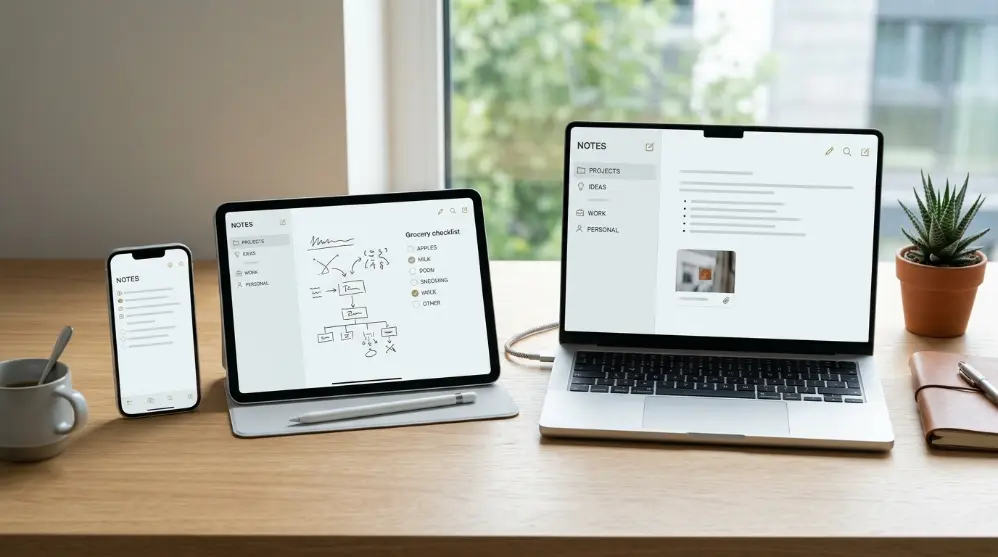
You can use Apple Notes to:
- Write and format notes.
- Create checklists and shopping lists.
- Scan documents.
- Add photos and attachments.
- Draw or write using Apple Pencil.
- Use tags to organize notes.
- Record audio and view transcripts.
Why choose Apple Notes?
It’s a good choice if you want a simple app that works smoothly with your Apple devices. You can quickly save an idea, write a reminder, or keep important information in one place.
Drawbacks: Apple Notes works best within Apple’s ecosystem. Some features and syncing options may be limited when using Windows or Android.
Pricing: Free, with 5GB of free iCloud storage shared with other iCloud services.
3. Google Keep – Best for Quick Notes and Reminders
Google Keep is a simple note-taking app from Google. It’s made for people who want to save quick ideas, reminders, and short lists without dealing with too many features.
You can create colorful notes, add labels, and pin important information so it’s easy to find later.
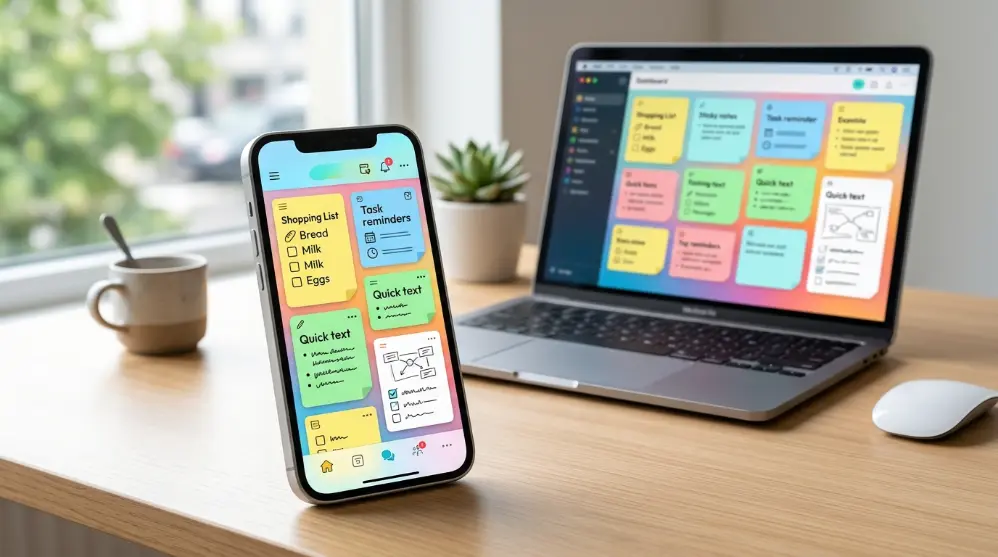
Its useful features include:
- Quick text notes.
- Shopping and task lists.
- Voice notes.
- Photo notes.
- Reminders.
- Color labels.
- Syncing across devices.
Why choose Google Keep?
If you already use Gmail, Google Drive, and Google Calendar, Keep is worth trying. You can access your notes while working with other Google services.
For example, you can write a shopping list on your phone and check it later when you’re at the store.
Drawbacks: Google Keep is best for short notes. It doesn’t offer the same tools for long documents, detailed projects, or advanced note organization as some other apps.
Pricing: Free with a Google account. Your notes use your Google account’s shared storage.
4. Notion – Best for Notes, Tasks, and Project Planning
Notion is more than a regular note-taking app. It lets you write notes, manage tasks, plan projects, and organize information in one workspace.
You can create pages for different topics and add text, images, tables, checklists, and databases.

Some useful features include:
- Custom pages and templates.
- Task and project management.
- Tables and databases.
- Team collaboration.
- Shared workspaces.
- AI-powered tools on eligible plans.
Why choose Notion?
Notion is a good option for students, freelancers, and teams who want to manage their work and notes together.
For example, a student can create one workspace for class notes, homework, exam dates, and study plans.
Drawbacks: It can take time to learn. If you only want to write simple notes, its many features may feel unnecessary.
Pricing: Free plan available for personal use, with paid plans for additional features.
5. Obsidian – Best for Connecting Ideas and Notes
Obsidian is a powerful note-taking app for people who want to connect their ideas and build a personal library of information.
It saves notes as Markdown files on your device. You can link one note to another and create connections between different topics.

Its main features include:
- Linked notes.
- Graph view to see connections.
- Markdown support.
- Folders and tags.
- Community plugins.
- Local file storage.
Why choose Obsidian?
It’s useful for writers, researchers, students, and people who save lots of information. For example, you can create a note about SEO and link it to other notes about keywords, backlinks, and website audits.
Drawbacks: It has a learning curve. Beginners may need some time to understand its linking system and extra features.
Pricing: Free for personal use. Optional paid services include Sync and Publish.
Goodnotes is a popular note-taking app for people who like writing by hand. It’s especially useful for students who use an iPad and Apple Pencil.
Instead of typing everything, you can write notes just like you would in a paper notebook. You can also choose different paper styles and keep your notes in separate folders.
Some useful features include:
- Handwritten notes.
- Digital notebooks.
- PDF reading and marking.
- Custom paper styles.
- Searchable handwriting.
- Study and planning tools.
- AI-powered features on supported plans.
Why choose Goodnotes?
Goodnotes is a good choice for students who write class notes, solve math problems, or mark important parts of PDF files.
For example, you can open your class slides, highlight important points, and write your own notes beside them.
Drawbacks: Some features require a paid plan. It’s also more useful on tablets than for people who mainly type short notes.
Pricing: Free version available, with paid plans and optional AI features.
7. Notability – Best for Handwriting and Audio Notes
Notability is another useful app for students and people who prefer handwriting. It lets you write notes, record audio, and work with PDF files.
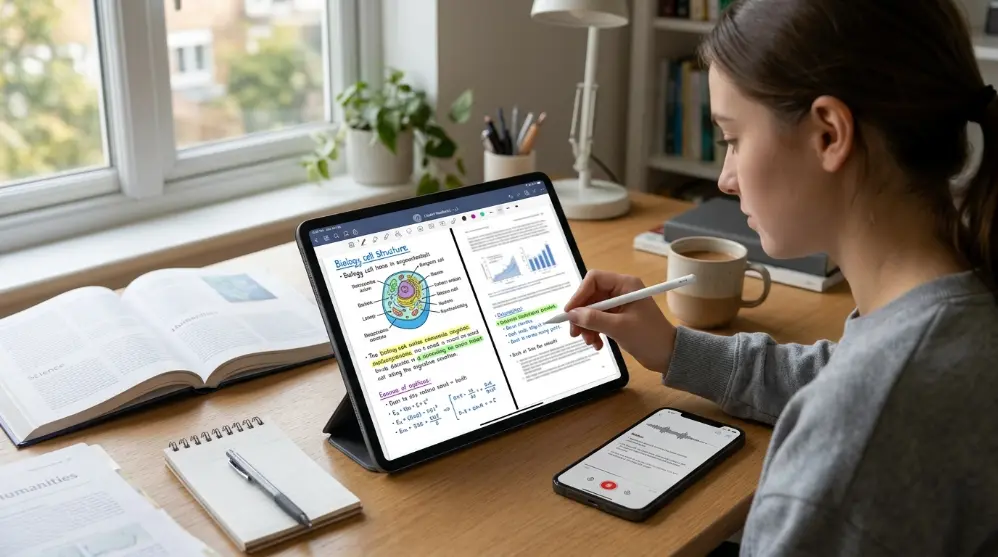
One of its helpful features is audio recording. You can record a lecture while writing notes, making it easier to review the lesson later.
Its main features include:
- Handwritten notes.
- Audio recording.
- Audio-linked notes.
- PDF editing and marking.
- Digital notebooks.
- Study and planning tools.
- AI-powered note features.
Why choose Notability?
It’s a useful choice for students who attend lectures and want to save both written notes and audio recordings.
For example, you can write down important points during a class and listen to the recording later to understand something you missed.
Drawbacks: Some features are limited in the free version. It also works best for people who use Apple devices.
Pricing: Free plan available, with paid subscriptions for extra features.
8. Joplin – Best Free and Open-Source Note Taking App
Joplin is a free and open-source note-taking app. It’s a good choice for people who want more control over their notes without paying for an expensive service.
You can create notebooks, write notes, add files, and organize your information. It also supports Markdown, which makes writing and formatting notes easier.

Some of its main features include:
- Text and Markdown notes.
- Notebooks and folders.
- File attachments.
- Web clipper.
- Note syncing options.
- End-to-end encryption.
Why choose Joplin?
Joplin is useful for students, writers, and people who want a simple alternative to paid note-taking apps.
You can also import your existing notes from Evernote, making it easier to move your information.
Drawbacks: Its design isn’t as polished as some other apps. Setting up note syncing may also take extra steps.
Pricing: Free to use. Joplin Cloud is available as a paid option.
9. Evernote – Best for Saving Documents and Web Pages
Evernote is a well-known note-taking app that helps you save notes, documents, web pages, and important information in one place.
You can create notebooks, add tags, attach files, and search through your saved information.
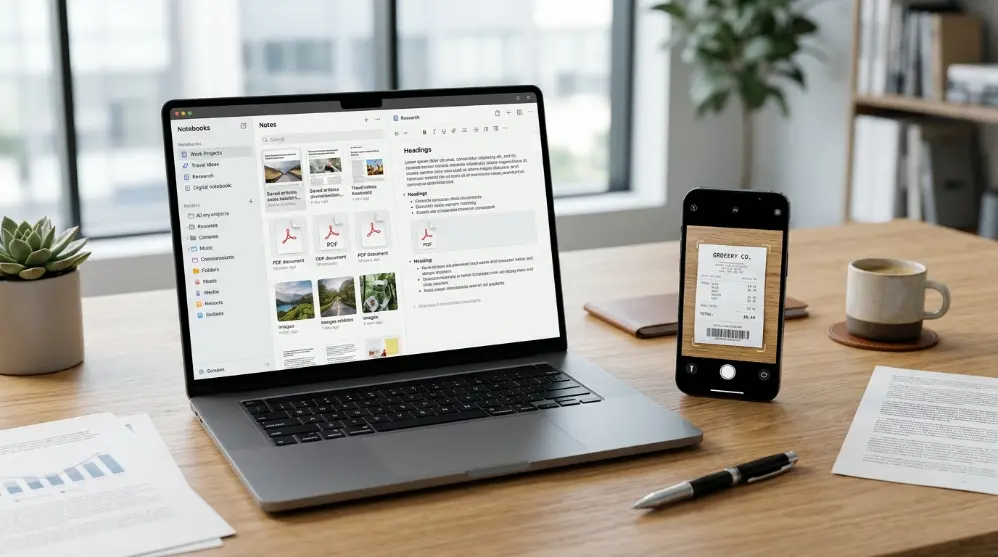
Its useful features include:
- Text notes.
- Document scanning.
- Web page saving.
- File attachments.
- Search tools.
- Tasks and reminders.
- AI-powered features.
Why choose Evernote?
Evernote is useful for people who save lots of documents, meeting notes, and website links.
For example, you can save an article, add your own thoughts, and find it later when you need that information.
Drawbacks: Its free plan has strict limits, and paid plans can be expensive compared with other options.
Pricing: Free plan with limited features. Paid plans offer more storage and tools.
10. Simplenote – Best for Simple Text Notes
Simplenote is a simple app for people who don’t need lots of extra features. You can open it, write something, and save your note in seconds.
Its main features include:
- Quick text notes.
- Tags for organization.
- Search tools.
- Note syncing.
- Markdown support.
- Sharing and collaboration.
Why choose Simplenote?
It’s a good option for people who mostly write short notes, save ideas, and make simple lists.
Drawbacks: It doesn’t offer advanced tools for handwriting, drawing, or managing large projects.
Pricing: Free to use.
Now that we’ve covered 10 popular note-taking apps, let’s look at which ones are best for different users. The right choice depends on your device, budget, and the way you like to write notes.
What Is the Best Free Note Taking App?
If you don’t want to pay for a subscription, several apps offer free plans. You can use them to write notes, save ideas, and keep your daily tasks organized.
Here are some good free options:
| App | Best Free Features |
|---|---|
| Microsoft OneNote | Notebooks, handwriting, and audio notes |
| Google Keep | Quick notes, lists, and reminders |
| Apple Notes | Notes and checklists for Apple users |
| Obsidian | Local notes and linked ideas |
| Joplin | Open-source notes and Markdown |
| Simplenote | Simple text notes and syncing |
Microsoft OneNote is a great starting point for most people because it offers many useful features without requiring a paid subscription.
However, if you use an iPhone or Mac, Apple Notes may be a better choice. Google Keep is also worth trying if you only need short notes and reminders.
Keep in mind that free plans can have limits. Some apps charge extra for more storage, syncing, or advanced tools.
What Is the Best Note Taking App for Students?
Students need an app that makes it easy to save class notes, prepare for exams, and organize study material.
A good student note-taking app should let you:
- Write notes during class.
- Save PDF files and study material.
- Create subject-wise folders.
- Make checklists for homework.
- Search for old notes.
- Access notes from different devices.
Here are some good choices:

- OneNote: Great for class notes, drawings, and subject-wise notebooks.
- Goodnotes: Useful for handwritten notes and PDF marking on tablets.
- Notability: Helpful for recording lectures while taking notes.
- Notion: Good for managing homework, study plans, and projects.
- Google Keep: Best for quick reminders and short study lists.
For most students, OneNote is a good free option. But if you have an iPad and enjoy writing with a stylus, Goodnotes or Notability may suit you better.
What Is the Best Note Taking App for Android?
If you use an Android phone or tablet, you need an app that makes saving notes quick and easy.
Here are some good options:
- Google Keep: Best for quick notes, shopping lists, and reminders.
- Microsoft OneNote: Good for longer notes, schoolwork, and drawings.
- Notion: Useful for notes, tasks, and project planning.
- Obsidian: Great for linking ideas and saving detailed information.
- Joplin: A good free option for text notes and Markdown.
Our pick: Google Keep is a good choice for everyday notes. If you need more features, try OneNote.
What Is the Best Note Taking App for iPhone?
iPhone users have several good options. However, Apple Notes is a great place to start because it comes with the phone.
Other options include:
- Apple Notes: Best for simple notes and Apple device syncing.
- Notion: Good for organizing work and personal tasks.
- Goodnotes: Useful for handwritten notes on supported Apple devices.
- Notability: Great for audio recordings and handwritten notes.
- Evernote: Useful for saving documents and website information.
Our pick: Apple Notes is the best starting choice for most iPhone users. You don’t need to install another app or pay for a basic note-taking tool.
What Is the Best Note Taking App for Handwriting?
If you enjoy writing with a pen or stylus, choose an app that supports digital handwriting.
Here are three good options:
| App | Best Use |
|---|---|
| Goodnotes | Digital notebooks and handwriting |
| Notability | Handwriting with audio recordings |
| Microsoft OneNote | Handwriting across different devices |
Goodnotes is a great choice for people who want their digital notebook to feel like a real paper notebook. Notability is better if you also want to record lessons or meetings.
OneNote is worth trying if you want handwriting tools without buying a separate app subscription.
Choosing the best note-taking app isn’t just about its name or popularity. You should also check the features that make your daily work easier. Here are some important things to consider before choosing one.
1. Easy Note Organization
A good app should help you keep your notes in order. Look for features such as folders, tags, notebooks, and search options.
For example, students can create separate folders for each subject. Business owners can keep meeting notes, ideas, and task lists in different places.
This makes it easier to find the right note when you need it.
2. Fast Search
Search is one of the most useful features in a note-taking app. You shouldn’t have to open dozens of notes to find one small detail.
Some apps can search typed words, while others can also find text inside PDFs, images, or handwritten notes. If you save lots of information, check how well the app’s search works.
3. Cloud Sync Across Devices
Cloud sync lets you access your notes on more than one device.
For example, you can write a note on your laptop and read it later on your phone. This is helpful when you study or work from different places.
Before choosing an app, check which devices it supports and whether syncing is included in its free plan.
4. Offline Access
Internet access isn’t always available. That’s why offline access can be useful.
It lets you read or write notes without an internet connection. Some apps sync your changes when you go online again.
Check whether the app supports offline access on your devices. Also, make sure your notes are saved properly before relying on them without the internet.
5. Handwriting and Drawing
If you use a tablet with a stylus, handwriting support may be important.
Apps like Goodnotes, Notability, and OneNote let you write by hand. You can also use drawing tools, highlight text, and add handwritten notes to your study material.
However, if you mostly type, you may not need these features.
6. Sharing and Teamwork
Some notes are better when you can share them with others.
Look for apps that let you share notes, invite people, or work together on the same page. This can help students with group projects and teams with meeting notes.
7. Security and Backup
Your notes may contain personal ideas, work details, or private information. So, check how the app protects your data.
Look for account security, backup options, and clear privacy settings. Don’t keep your only copy of important information in one app.
Are Free Note-Taking Apps Good Enough?
Yes! Many free note-taking apps offer enough features for everyday use.
For example:
- OneNote: Good for notebooks, typed notes, and handwriting.
- Google Keep: Useful for quick notes and reminders.
- Apple Notes: A simple choice for Apple users.
- Joplin: A free and open-source option.
- Simplenote: Good for basic text notes.
You don’t need to pay just to write, save, and organize notes.
However, paid plans may offer extra storage, more advanced tools, larger file uploads, or better teamwork features. These features differ from one app to another.
My advice: Start with a free plan. Use it for a few days and see if it meets your needs. Upgrade only when you actually need a paid feature.
How to Choose the Right Note-Taking App
Still not sure which app to use? Try this simple method:
- Think about your needs: Do you need notes for school, work, meetings, or personal ideas?
- Check your devices: Make sure the app works on your phone, tablet, or computer.
- Try the free version: Test its main features before paying.
- Create a few notes: Add text, images, links, or files that you normally use.
- Check syncing and backup: Make sure your notes stay available and safe.
- Keep it simple: Choose an app you enjoy using every day.
The best app isn’t always the one with the most features. It’s the one that helps you save information and find it again without wasting time.
If you’re interested in building your own software, check out our guide on how to create an app, where we explain the process step by step for beginners.

A good note-taking app can help you save information, but how you use it matters too. Here are some simple tips to keep your notes clear and useful.
1. Keep Your Notes Short
Don’t write every word you hear or read. Save the main ideas and important details.
Short notes are easier to read and understand later.
2. Use Clear Titles
Give every note a title that explains what it’s about.
For example, instead of writing “Notes 1”, use “English Class Notes” or “Website Project Ideas”.
This makes searching much easier.
3. Create Separate Folders
Keep different types of notes in separate folders or notebooks.
You can create folders for:
- School or college
- Work projects
- Personal ideas
- Shopping lists
- Meeting notes
This helps you avoid a messy collection of notes.
4. Review Your Notes Regularly
Take a few minutes to check your saved notes. Remove information you don’t need and update anything that’s changed.
For students, reviewing class notes can also help with exam preparation.
5. Back Up Important Notes
Don’t depend on one device or one copy of your notes. Check whether your app syncs your data or offers backup options.
For very important information, keep another copy in a safe place.
Frequently Asked Questions
What is the best note taking app overall?
There isn’t one perfect app for everyone. Microsoft OneNote is a strong all-round choice because it supports typed notes, handwriting, notebooks, and different devices. Apple Notes is a simple option for Apple users, while Notion is useful for organizing notes and projects.
What is the best free note taking app?
Microsoft OneNote, Google Keep, Apple Notes, Joplin, and Simplenote are good free options. The right choice depends on your device and the features you need.
Which note taking app is best for students?
OneNote is a good choice for general class notes. Goodnotes and Notability are useful for handwritten notes and PDFs. Notion can help students organize subjects, tasks, and study plans.
Is OneNote better than Notion?
It depends on how you work. OneNote is better suited to traditional notebooks, free-form pages, and handwriting. Notion is useful for structured notes, databases, task lists, and project planning.
Which note taking app is best for Android?
Google Keep is great for quick notes and reminders. OneNote is useful for longer notes and notebooks. Notion and Obsidian are also worth trying if you need more ways to organize information.
Which note taking app is best for iPhone?
Apple Notes is a convenient choice for iPhone users. It works well for everyday notes and lists. Notion, Goodnotes, and Evernote are other options depending on your needs.
Can I use a note taking app without the internet?
Yes, some note-taking apps support offline use. However, offline features can differ between apps and devices. Check the app’s settings and plan details before relying on it without an internet connection.
Should I use one note taking app or multiple apps?
For most people, one app is enough. Using too many apps can make notes harder to find. Choose one main app and use another only when you need a special feature, such as handwriting or PDF annotation.
Final Thoughts
The best note taking app is the one that fits your daily needs. You don’t have to choose the most popular or expensive option.
If you want a free app for general notes, try OneNote. For quick reminders, use Google Keep. Apple users can start with Apple Notes, while Notion is worth trying for notes and project planning. If you prefer handwriting, take a look at Goodnotes or Notability.
Start with a free version and test it with your normal tasks. Once you find an app that feels easy to use, stick with it and keep your notes organized.
A simple app that you use every day is better than a powerful app that you rarely open.