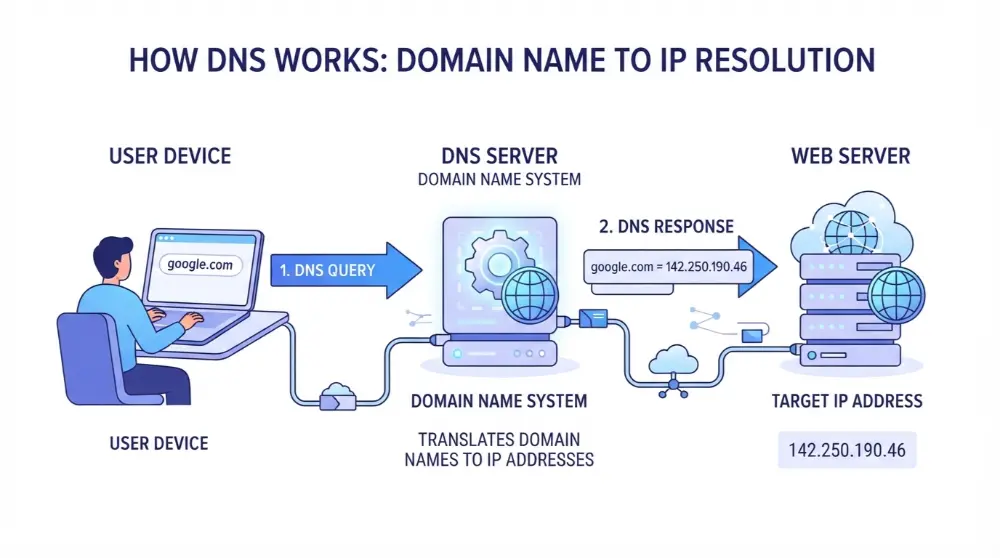
Have you ever wondered what happens when you type Google.com or YouTube.com into your browser? How does your computer know where to find that website? It doesn’t understand website names the same way people do. It needs a special system to find the right address. That’s where a DNS server comes in.
A DNS server helps your device find websites by turning easy-to-read domain names into IP addresses. Without this system, you’d have to remember long strings of numbers every time you wanted to visit a website. Sounds difficult, right?
Think of it like saving someone’s phone number under their name. You don’t need to remember the actual number. You just search for their name and make a call. DNS works in a similar way for websites.
In this guide, you’ll learn what a DNS server is, how it works, the different types of DNS servers, and why your internet connection needs them. We’ll also cover common DNS problems and simple ways to fix them.
What Is a DNS Server?
A DNS server (Domain Name System server) is a computer or system that helps translate domain names into IP addresses. It allows your device to find the correct website without requiring you to remember its numerical address.
For example, when you enter google.com into your browser, your device needs to find the IP address connected to that domain. It sends a request to a DNS server to get the required information.
Once your device receives the IP address, your browser can connect to the website’s server and load its content.
Here’s a simple example:
- Domain name: google.com
- IP address: A numerical address that identifies the server your device needs to reach.
- DNS server: The system that helps find the correct IP address.
You can think of DNS as the internet’s phonebook. You search for a website using its name, and DNS helps your device find its numerical address.
What Does a DNS Server Actually Do?
A DNS server mainly handles requests called DNS queries. When you try to open a website, it helps find the IP address associated with that domain name.
Its main jobs include:
- Finding IP addresses: It matches domain names with their corresponding IP addresses.
- Answering DNS requests: It responds when your device asks for website information.
- Saving DNS information: Some DNS servers temporarily store previous results to make future lookups faster.
- Helping websites load: It allows browsers to find the correct servers before connecting to websites.
In simple words, a DNS server works behind the scenes so you can visit websites using names instead of remembering numbers.
How Does a DNS Server Work?
A DNS server works by finding the IP address connected to a domain name. This process is called DNS resolution or a DNS lookup.
When you enter a website address into your browser, your device doesn’t immediately know which server to contact. It first needs to find the correct IP address.
Different DNS servers work together to complete this task. Let’s understand the process with a simple example.
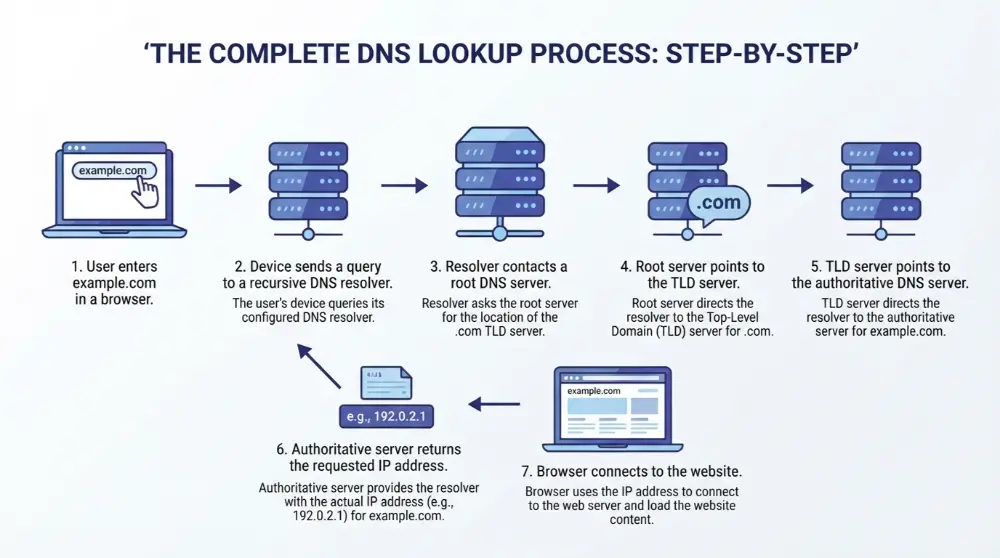
Imagine you want to visit example.com. Here’s what happens behind the scenes.
Step 1: You Enter a Website Address
First, you open your browser and type a domain name, such as example.com.
Your browser needs an IP address to connect to the website. Before sending a request across the internet, it checks whether it already knows the address.
Step 2: Your Device Checks Its DNS Cache
Your computer or phone may have saved the IP address from an earlier visit.
This saved information is called a DNS cache.
If the correct information is available and hasn’t expired, your device can use it without asking other DNS servers.
If it can’t find the required information, it sends a DNS query to a recursive DNS resolver.
Step 3: The Recursive Resolver Receives the Request
A recursive DNS resolver is usually provided by your internet service provider (ISP). You can also use public DNS services from companies like Google or Cloudflare.
Its job is to find the requested IP address for your device.
The resolver first checks its own cache. If it already has the correct information, it sends the answer back.
If not, it starts asking other DNS servers for help.
Step 4: The Resolver Contacts a Root DNS Server
The resolver sends a request to a DNS root server.
Root servers sit at the top of the DNS system. They don’t usually provide the final IP address for a website.
Instead, they tell the resolver where to find the correct Top-Level Domain (TLD) server.
For example, if you’re looking for example.com, the root server directs the resolver toward the .com TLD server.
Step 5: The TLD Server Provides the Next Direction
Now, the resolver contacts the .com TLD server.
TLD stands for Top-Level Domain. It’s the last part of a domain name, such as:
.com.org.net.edu
The TLD server helps identify which authoritative name server is responsible for the requested domain.
It then provides the resolver with information about that server.
Step 6: The Authoritative DNS Server Provides the Answer
Next, the resolver contacts the authoritative DNS server.
This server holds the official DNS records for the domain. These records contain information about where different services connected to the domain can be found.
For example, an A record can provide an IPv4 address, while an AAAA record can provide an IPv6 address.
The authoritative server sends the requested information back to the resolver.
Step 7: Your Device Receives the IP Address
After finding the required information, the recursive resolver sends the answer back to your device.
Your browser can now use the IP address to connect to the website’s server.
The website starts loading, and you can see its pages, images, and other content.
Simple DNS Lookup Example
Here’s a quick summary of the complete process:
- You enter
example.cominto your browser. - Your device checks its DNS cache.
- It asks a recursive DNS resolver for the IP address.
- The resolver contacts a root DNS server if needed.
- The root server directs it to the
.comTLD server. - The TLD server identifies the authoritative name server.
- The authoritative server provides the requested DNS record.
- The resolver sends the answer to your device.
- Your browser connects to the website’s server.
Important: This is a typical DNS lookup without cached information. In many cases, DNS caching allows the resolver to answer much faster without contacting every server.
What Are the Different Types of DNS Servers?
Not all DNS servers do the same job. Each type has a specific role in helping your device find a website.
During a normal DNS lookup, four main types of DNS servers work together:
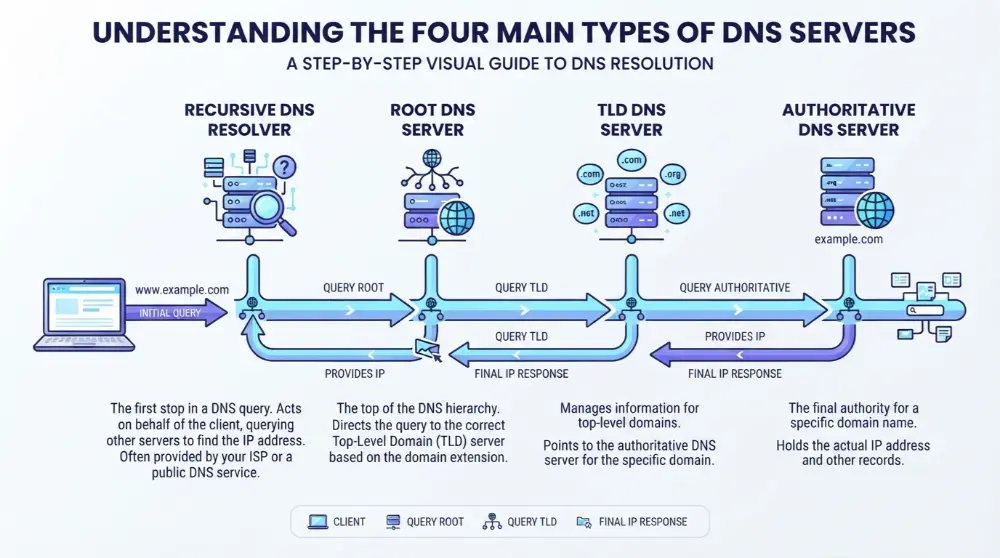
- Recursive DNS resolvers
- Root DNS servers
- TLD DNS servers
- Authoritative DNS servers
Let’s look at each one and understand what it does.
1. Recursive DNS Resolver
A recursive DNS resolver is the first server that usually handles your device’s DNS request.
When you enter a website address, your device sends a query to this resolver. It then searches for the correct IP address by checking its saved information or contacting other DNS servers.
Think of it as a helper that does all the searching for you.
For example, if you want to visit example.com, the recursive resolver checks whether it already knows the IP address. If not, it contacts root, TLD, and authoritative DNS servers to find the answer.
Main jobs of a recursive DNS resolver:
- Receives DNS queries from devices.
- Checks its DNS cache for saved information.
- Contacts other DNS servers when needed.
- Finds the requested DNS record.
- Sends the answer back to your device.
Your internet service provider may provide a recursive resolver automatically. However, you can also use public DNS resolvers from Google or Cloudflare.
2. Root DNS Server
A root DNS server sits at the top of the DNS hierarchy.
Its main job is to direct recursive resolvers toward the correct Top-Level Domain server.
For example, if a resolver needs information about example.com, the root server points it toward the .com TLD servers.
It doesn’t normally provide the final IP address of the website.
There are 13 logical root server identities, named A through M. However, these identities are served by many physical servers around the world using a system called Anycast.
Main jobs of a root DNS server:
- Operates at the top level of the DNS system.
- Receives requests from recursive resolvers.
- Directs resolvers toward the correct TLD servers.
- Helps organize the global DNS hierarchy.
3. TLD DNS Server
TLD stands for Top-Level Domain. It’s the final part of a domain name.
For example:
google.comuses.com.wikipedia.orguses.org.example.netuses.net.
A TLD DNS server manages information about domains that use a particular extension.
When a recursive resolver asks for example.com, the .com TLD server helps it find the authoritative name server responsible for that domain.
It doesn’t usually provide the website’s final IP address. Instead, it points the resolver toward the next server.
Main jobs of a TLD DNS server:
- Handles requests for a specific domain extension.
- Provides information about authoritative name servers.
- Helps resolvers find the correct DNS server for a domain.
4. Authoritative DNS Server
An authoritative DNS server stores the official DNS records for a domain.
It’s the server that provides the actual answer to a DNS query when the resolver reaches it.
For example, if someone searches for example.com, its authoritative DNS server can provide the IP address through an A or AAAA record.
It can also provide other information, such as mail server details and name server records.
Main jobs of an authoritative DNS server:
- Stores official DNS records for a domain.
- Provides requested DNS information.
- Helps connect domain names with their related services.
- Answers queries using the records managed for that domain.
DNS Server Types: Quick Comparison
Here’s a simple comparison to help you understand how these four DNS servers work together.
| DNS Server Type | Main Job |
|---|---|
| Recursive Resolver | Finds the requested DNS information |
| Root DNS Server | Directs the resolver to a TLD server |
| TLD DNS Server | Points to the authoritative name server |
| Authoritative DNS Server | Provides the requested DNS record |
Each server plays an important role. If one step is missing, the resolver may not be able to complete the lookup.
What Is DNS Caching, and Why Is It Important?
Have you noticed that some websites open faster when you visit them again? One reason is DNS caching.
DNS caching is the process of temporarily saving DNS information so your device or DNS resolver doesn’t have to search for the same IP address every time.
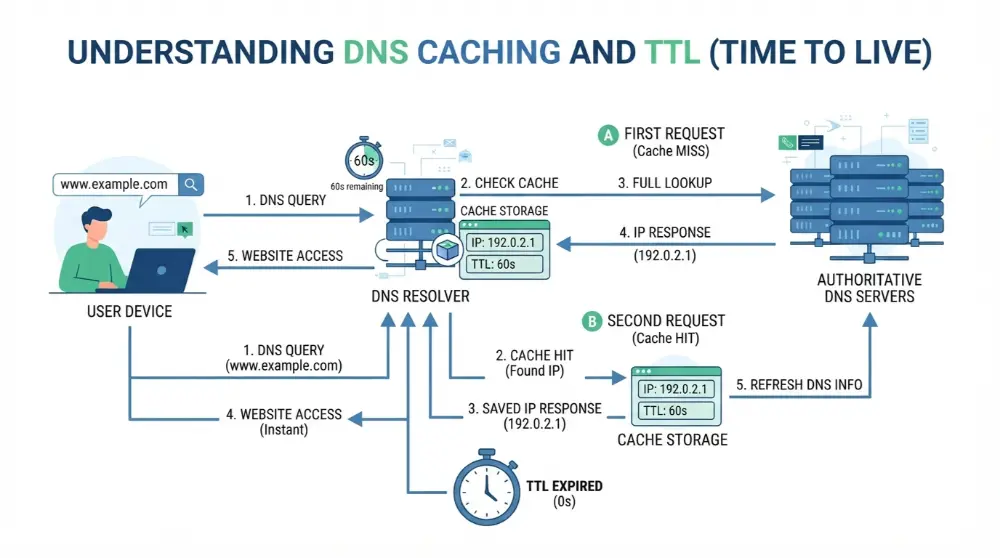
For example, imagine you visit google.com for the first time. Your DNS resolver finds the required IP address and saves it in its cache.
When you visit Google again, the resolver may already have the answer. It can return the saved information instead of contacting several DNS servers again.
This makes DNS lookups faster and reduces unnecessary requests.
How Does DNS Caching Work?
DNS caching is quite simple. Here’s how it works:
- You enter a website address into your browser.
- Your device requests the website’s IP address.
- The DNS resolver finds the correct DNS information.
- It saves the result in its cache for a limited time.
- When another request comes in, it can use the saved information if it hasn’t expired.
However, DNS information isn’t saved forever. It stays in the cache for a specific period.
This period is controlled by a setting called Time to Live (TTL).
What Is DNS TTL?
TTL stands for Time to Live. It tells DNS systems how long they can keep a DNS record in their cache before checking for updated information.
For example, suppose a DNS record has a TTL of 3,600 seconds. This means the record can stay in the cache for up to one hour.
After that period, the cached information expires. The resolver may need to request updated information from the authoritative DNS server.
Different DNS records can have different TTL values.
TTL is important because website owners sometimes change their server IP addresses. If DNS resolvers kept old information forever, visitors might be sent to the wrong server.
What Are the Benefits of DNS Caching?
DNS caching offers several benefits for internet users and website owners.
1. Faster DNS Lookups
When the required IP address is already saved, the resolver doesn’t need to repeat the complete lookup process. This can help websites start connecting faster.
2. Fewer DNS Requests
Caching reduces the number of requests sent to other DNS servers. This helps lower unnecessary network traffic.
3. Better DNS Performance
DNS servers can handle requests more efficiently when they can answer common queries using saved information.
4. Less Work for DNS Infrastructure
By reusing stored DNS records, caching reduces repeated requests to root, TLD, and authoritative servers.
What Is a DNS Cache Flush?
Sometimes, your device may have old DNS information saved in its cache.
For example, a website owner might move a website to a new server. However, your computer may still have an older IP address saved.
In this situation, you may need to clear your local DNS cache. This process is called a DNS cache flush.
Flushing the cache removes saved DNS information from your device. Your computer can then request fresh information when it visits websites again.
You can use this method to troubleshoot certain DNS-related problems.
Keep in mind: Flushing your DNS cache doesn’t automatically fix every internet problem. It only clears locally stored DNS information.
Why Are DNS Servers Important?
DNS servers play an important role in how the internet works. Without them, visiting websites would be much harder because people would need to remember numerical IP addresses instead of simple domain names.
But that’s not their only benefit. DNS servers also help improve browsing speed, manage internet traffic, and support online security.
Here are some reasons why DNS servers matter.
1. They Make Websites Easy to Access
Remembering website names is much easier than remembering IP addresses.
For example, you can type youtube.com into your browser instead of entering a long numerical address.
DNS servers handle the translation in the background, making internet browsing simple for everyone.
2. They Help Websites Load Faster
DNS caching helps resolvers answer repeated requests without performing a complete lookup every time.
Some DNS providers also use fast and widely distributed server networks to handle requests efficiently.
However, changing your DNS provider doesn’t automatically make every website load faster. Website hosting, your internet connection, and other factors also affect loading speed.
3. They Help Manage Internet Traffic
DNS can help direct users toward different servers.
For example, a large website may use multiple servers in different locations. Its DNS setup can provide different IP addresses based on location or other conditions.
This helps websites manage traffic and improve availability.
4. They Support Online Security
Some DNS providers offer security features that can block access to known malicious websites.
These features can help protect users from certain phishing pages, harmful websites, and other online threats.
However, DNS filtering isn’t a complete security solution. You should still use trusted websites, updated software, and reliable security tools.
5. They Help Different Internet Services Work
DNS isn’t only used for opening websites.
It also helps other internet services find the correct servers.
For example:
- Email services use DNS records to find mail servers.
- Online applications use DNS to locate their servers.
- Businesses use DNS to manage their websites and online services.
- Networks use DNS to find different devices and services.
That’s why DNS is an important part of everyday internet use.
Are DNS Servers Safe?
Yes, DNS servers are generally safe to use, but their security depends on the provider and the protection methods being used.
Your DNS resolver receives information about the domain names your device wants to access. This means your DNS provider may be able to see your DNS queries, depending on how your connection is configured.
Some DNS services also offer extra security features to protect users from harmful websites.
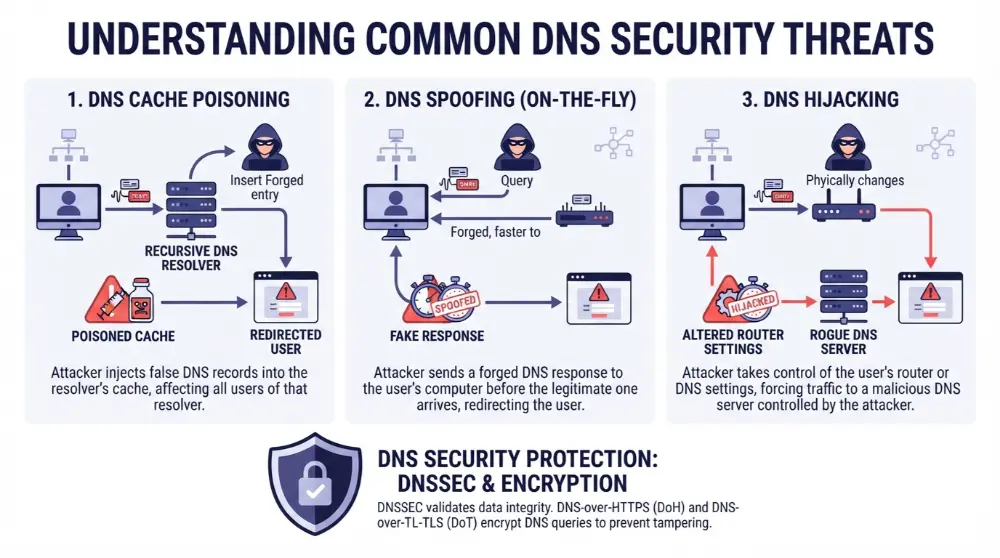
However, it’s important to understand that DNS alone doesn’t protect all your online activity.
Common DNS Security Risks
Here are some DNS-related threats you should know about.
1. DNS Spoofing
DNS spoofing happens when an attacker provides false DNS information to redirect users to the wrong destination.
For example, you may enter the correct website address but get sent to a fake website instead.
2. DNS Cache Poisoning
DNS cache poisoning is an attack in which false DNS information gets added to a resolver’s cache.
As a result, users may receive an incorrect IP address when they try to visit a website.
3. DNS Hijacking
DNS hijacking happens when someone changes or takes control of DNS settings to redirect users to unwanted destinations.
This can happen through compromised routers, devices, or DNS accounts.
How Can You Improve DNS Security?
You can take a few simple steps to make DNS use safer:
- Choose a trusted DNS provider.
- Keep your router and computer software updated.
- Use DNS over HTTPS (DoH) or DNS over TLS (DoT) when supported.
- Use DNSSEC validation where available.
- Avoid clicking suspicious links.
- Protect your router and DNS account with strong passwords.
These steps can reduce certain DNS-related risks, but they don’t replace other important security measures.
Common DNS Problems and How to Fix Them
Sometimes, your internet connection works, but you still can’t open certain websites. You may also see an error message saying that the DNS server isn’t responding.
These problems can happen for several reasons, including incorrect DNS settings, network issues, or problems with your DNS provider.
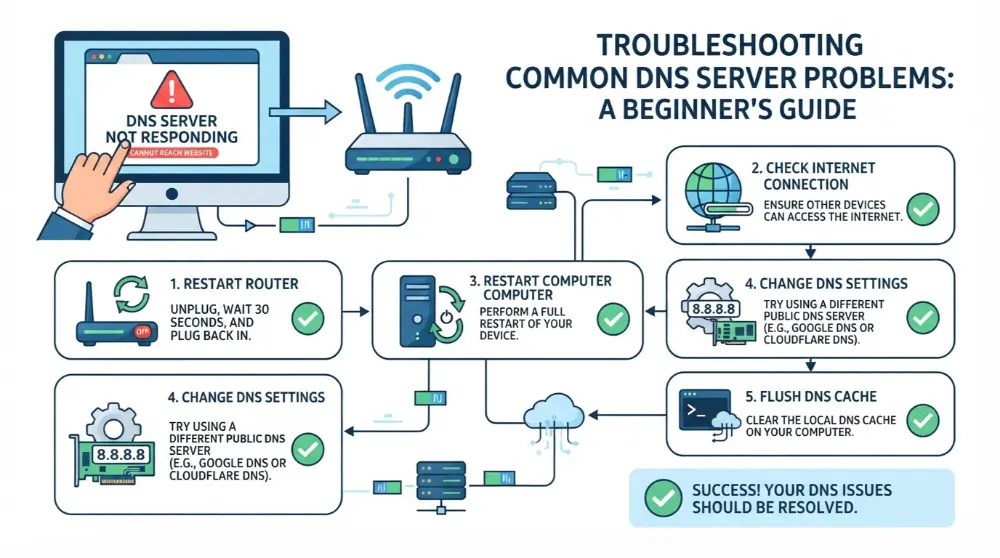
Let’s look at some common DNS problems and their possible solutions.
1. DNS Server Not Responding
This is one of the most common DNS errors.
It means your device can’t get a response from the DNS server. As a result, your browser may fail to find the website’s IP address.
How to fix it:
- Restart your router and modem.
- Check whether your internet connection is working.
- Restart your computer or phone.
- Try using another DNS server.
- Temporarily disable your VPN to check whether it’s causing the issue.
2. DNS Lookup Failed
A DNS lookup failed error appears when your device can’t find the DNS information needed to reach a website.
How to fix it:
- Check the website address for spelling mistakes.
- Clear your browser’s DNS-related cache if applicable.
- Flush your computer’s DNS cache.
- Restart your internet connection.
- Try opening another website.
3. Slow DNS Response
Sometimes, a DNS server takes too long to answer your request.
This can happen because of network problems, a slow DNS provider, or temporary server issues.
How to fix it:
- Try another DNS provider.
- Restart your router.
- Check your internet connection.
- Contact your ISP if the problem continues.
4. Incorrect DNS Settings
Your device may have incorrect DNS settings, which can prevent it from finding websites.
How to fix it:
- Check your device’s DNS settings.
- Set DNS to automatic if you want to use your ISP’s default settings.
- If you prefer a public DNS provider, enter its correct server addresses.
- Restart your network connection after making changes.
How to Find Your DNS Server
If you want to know which DNS server your device is using, you can check its network settings.
Here are some simple methods for different operating systems.
On Windows
- Press the Windows key and search for Command Prompt.
- Open Command Prompt.
- Type
ipconfig /all. - Press Enter.
- Look for the DNS Servers entry under your active network connection.
You’ll see the DNS server addresses your computer is configured to use.
On macOS
- Open System Settings.
- Select Network.
- Choose your active Wi-Fi or Ethernet connection.
- Open Details.
- Find the DNS section.
You’ll see the DNS servers configured for that connection.
On Android and iPhone
You can check DNS settings through your device’s network settings.
On Android, open your Wi-Fi settings and check the network details. The exact steps depend on your device and Android version.
On iPhone, open Settings, select Wi-Fi, tap the information icon next to your connected network, and select Configure DNS.
What Is the 8.8.8.8 DNS Server?
8.8.8.8 is one of Google’s public DNS server addresses.
It’s part of Google Public DNS, a free DNS service that helps users find IP addresses for domain names.
Google also provides another IPv4 DNS address:
- Primary DNS: 8.8.8.8
- Secondary DNS: 8.8.4.4
You can configure these addresses on supported devices and routers.
Google Public DNS is an alternative to the DNS servers provided by your internet service provider.
Frequently Asked Questions About DNS Servers
What is a DNS server in simple words?
A DNS server helps your device find websites by translating domain names into IP addresses. It’s like a phonebook that connects website names with their numerical addresses.
What does a DNS server do?
A DNS server handles DNS requests and provides information about domain names. It helps your browser find the correct server when you want to visit a website.
What is the difference between DNS and a DNS server?
DNS is the complete system that connects domain names with internet information. A DNS server is a computer or system that handles DNS requests and provides DNS information.
What is the best DNS server to use?
There isn’t one best DNS server for everyone. Popular options include Google Public DNS (8.8.8.8) and Cloudflare DNS (1.1.1.1). Your best choice depends on speed, privacy, security features, and availability in your location.
Can changing my DNS server improve internet speed?
It may improve DNS lookup times if your current provider is slow. However, it won’t automatically increase your internet plan’s download or upload speed.
Is a DNS server the same as a VPN?
No. A DNS server helps find the IP address of a domain name, while a VPN creates an encrypted connection between your device and a VPN server. They have different purposes, although some VPN services also provide their own DNS servers.
What happens if a DNS server stops working?
Your device may not be able to find the IP addresses needed to open websites. You might see errors such as DNS server not responding. Switching to another working DNS resolver may help.
Do I need a DNS server to use the internet?
Yes, DNS is widely used to access websites and online services through domain names. Without DNS, you’d need another way to find the correct IP addresses.
Conclusion
A DNS server is an important part of how the internet works. It helps translate easy-to-remember domain names into IP addresses so your device can find websites and online services.
As you’ve learned, different DNS servers work together during a DNS lookup. Recursive resolvers, root servers, TLD servers, and authoritative servers each have their own jobs.
DNS caching also helps make repeated lookups faster, while security features can protect users from certain online threats.
Understanding how DNS works can help you make better choices about your network settings and solve common connection problems. Whether you’re browsing websites, managing a domain, or troubleshooting your internet, knowing the basics of DNS is always useful.