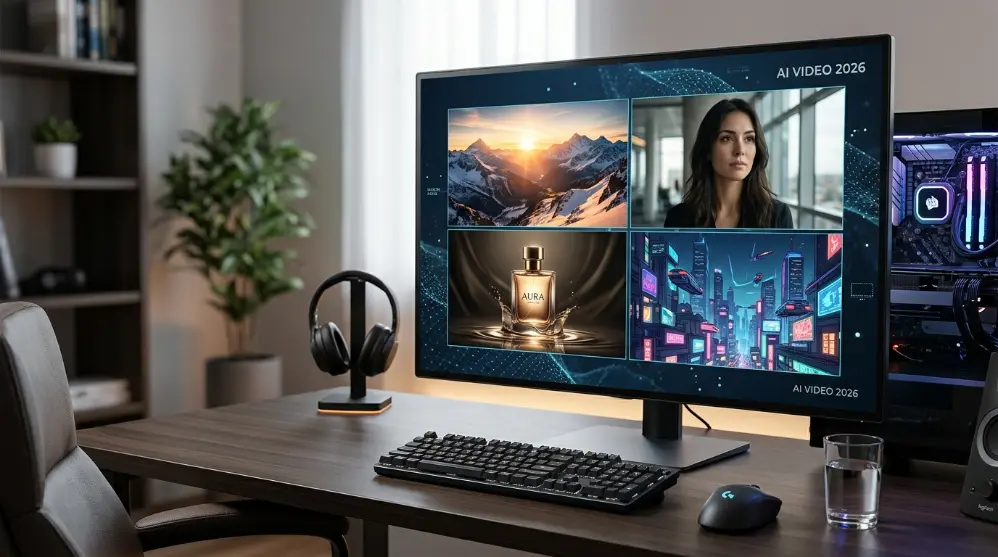
Creating professional videos used to take hours. You needed a camera, editing software, video clips, music, and sometimes a whole team. But things have changed. Today, you can create videos with just a few lines of text or a simple image.
The best AI video generator can turn your ideas into realistic videos, animated clips, product demonstrations, social media posts, and even short films. You don’t need advanced editing skills or expensive equipment to get started.
However, choosing the right tool isn’t easy. Some AI video generators are great at creating realistic scenes, while others are better for YouTube videos, marketing content, animations, or talking AI avatars. Some offer free credits, but others require a paid subscription to unlock their best features.
So, which one should you choose?
In this guide, we’ll explore 10 of the best AI video generators in 2026. We’ll look at their main features, strengths, limitations, pricing options, and ideal uses. We’ll also explain which tools are worth trying if you’re a beginner, content creator, marketer, or business owner.
Let’s get started!
What Is an AI Video Generator?
An AI video generator is an online tool or software that uses artificial intelligence to create videos from text prompts, images, scripts, or existing video clips.
For example, you could type:
“A golden retriever running through a green park on a sunny morning, cinematic camera movement, realistic lighting.”
The AI tool reads your instructions and creates a video based on your description.
Most AI video generators support one or more of these features:
- Text-to-video: Create videos by describing a scene in words.
- Image-to-video: Turn a still image into a moving video.
- Video-to-video: Change the style, background, or appearance of an existing video.
- AI avatars: Create videos featuring digital people who speak your script.
- Script-to-video: Turn written content into videos with visuals, music, and voiceovers.
- AI video editing: Improve existing footage with automatic editing tools.
These features can save time and make video creation easier. For example, a small business owner can create a product advertisement without hiring a video production team. A blogger can turn an article into a short video, while a YouTuber can create visual scenes for a new video.
However, remember that AI-generated videos aren’t always perfect. You may still need to adjust scenes, fix strange movements, improve sound, or edit the final result before publishing.
10 Best AI Video Generators in 2026
There are many AI video tools available today, but they don’t all do the same job. Some focus on realistic video scenes, while others help you make marketing videos, social media clips, or videos with digital presenters.
Here are the first two tools worth considering.
1. Google Veo 3.1

Best for: Realistic AI videos with sound and detailed scenes
Google Veo 3.1 is an AI video model from Google DeepMind. It can create video clips from text prompts and images. You can describe a scene, explain how you want the camera to move, and let the model create a video based on your instructions.
One useful feature is its ability to create video with sound. Depending on the workflow, this can include dialogue, background sounds, and other audio that fits the scene. Veo 3.1 also supports reference images, which can help keep characters and visual details more consistent across clips. Google DeepMind+1
Main features:
- Creates videos from text prompts and images.
- Supports generated audio with video.
- Offers camera and motion controls.
- Can use reference images to guide the result.
- Supports video extension and scene editing features.
Pros:
- Good choice for realistic-looking scenes.
- Audio generation can reduce extra editing work.
- Useful creative controls for different types of shots.
Cons:
- Access and usage limits depend on the Google product or plan you use.
- Results may still need editing.
- Detailed prompts may take a few attempts to get right.
Who should use it?
Veo 3.1 is worth exploring if you want realistic scenes for short films, advertisements, product videos, or creative projects. It’s also a good option when you want visuals and sound created together.
2. Runway
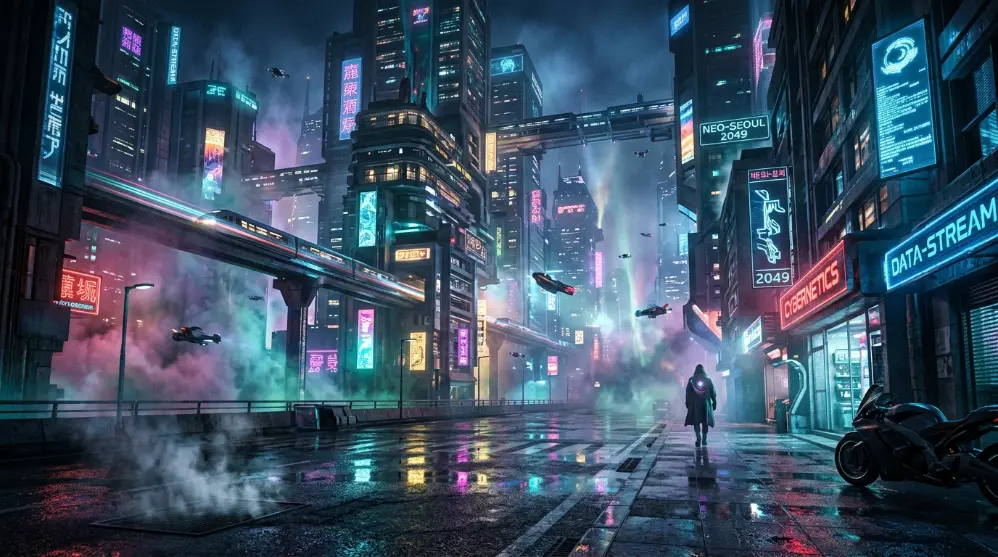
Best for: Creative video generation and AI-powered editing
Runway is a popular choice for creators who want more control over how their videos look. It offers AI video generation along with tools that help you edit and change visual content.
You can start with a text prompt or an image and create a video clip. Instead of making every scene from scratch, you can also use AI tools to change parts of your creative workflow.
Runway is especially useful for people working on short films, music videos, advertisements, and other visual projects. Its newer models focus on improving video quality and giving creators more control over the output.
Main features:
- Text-to-video and image-to-video generation.
- AI tools for changing and editing video content.
- Creative controls for building visual scenes.
- Workflows for short films and promotional videos.
Pros:
- Useful for creative video projects.
- Offers more than basic text-to-video generation.
- Can help creators explore different visual styles.
Cons:
- Some advanced features may take time to learn.
- Generations can use credits.
- You may need several attempts to get the exact result you want.
Who should use it?
Choose Runway if you’re a filmmaker, designer, content creator, or marketer who wants to create original video scenes and experiment with AI editing tools.
3. Kling AI
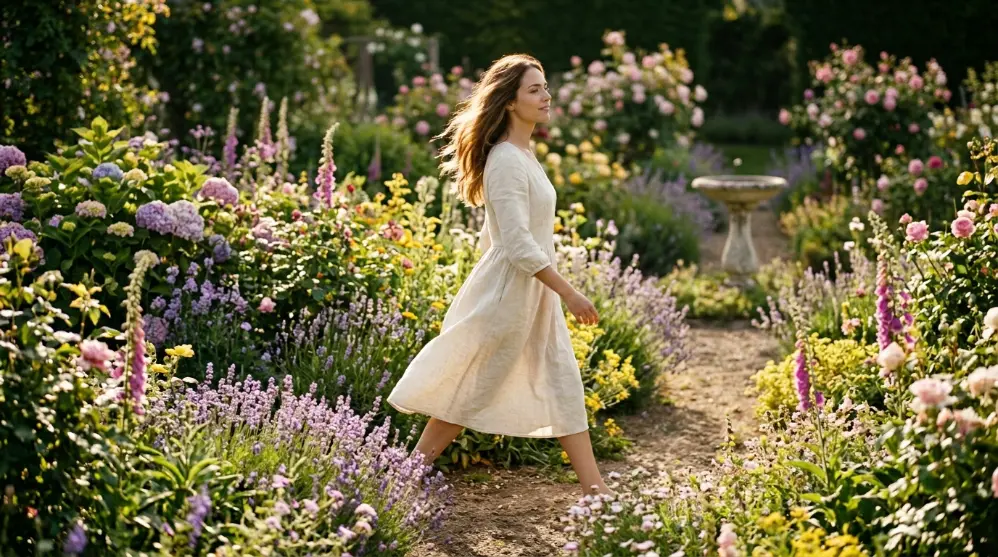
Best for: Realistic motion, character scenes, and creative video clips
Kling AI is another strong option for creating videos with artificial intelligence. You can use text prompts or images to make short video clips. It’s useful when you want to bring a still picture to life or create a scene from a written idea.
Kling offers different video models and tools. Features can vary depending on the model you select. Some versions support native audio, reference images, and video editing features. Runway
Main features:
- Text-to-video and image-to-video generation.
- Tools for controlling character and object movement.
- Different models for video creation.
- Audio features in supported models.
- Options for creating and editing short clips.
Pros:
- Useful for realistic-looking motion.
- Supports both text and image inputs.
- Offers different models for different needs.
Cons:
- Some features may only be available on certain plans.
- Video generation can use credits.
- You may need to rewrite prompts to improve the result.
Who should use it?
Kling AI is worth trying if you want to create short social media videos, animated scenes, product clips, or visual stories. It’s also useful if you already have an image and want to turn it into a moving video.
4. Canva AI Video Generator

Best for: Beginners, social media videos, and simple marketing content
Canva is well known for its easy design tools. It also offers AI video creation features, making it a useful choice for people who want to create videos without learning complex editing software.
You can describe the video you want and generate a short clip from your prompt. Canva’s AI video feature uses Google’s Veo technology for video creation. Its listed workflow supports clips of up to eight seconds, with generated audio such as dialogue and sound effects. You can then continue editing your project in Canva. Canva
Main features:
- Creates short video clips from text prompts.
- Supports generated audio in its AI video workflow.
- Lets you edit your project after generation.
- Works with Canva’s design and content tools.
- Helps create content for social media and marketing.
Pros:
- Beginner-friendly interface.
- Useful for combining videos with text and graphics.
- Good for simple promotional content.
- You can continue editing inside Canva.
Cons:
- Generated clips are short.
- AI video access and monthly limits depend on your plan.
- It may not offer the same level of detailed control as specialist video tools.
Who should use it?
Canva is a good choice for bloggers, small business owners, students, and social media managers. If you want to create a simple promotional video, add text, and prepare content for social platforms in one place, it’s worth considering.
5. HeyGen
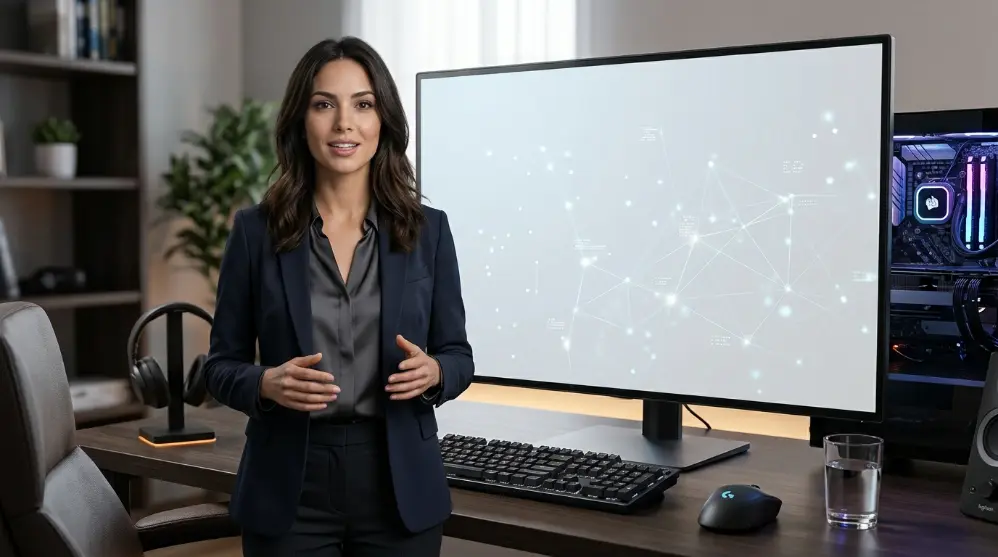
Best for: Talking avatar videos, training, and business presentations
HeyGen is different from tools that mainly create cinematic scenes. Its main strength is making videos with AI avatars that speak your script. You can choose a digital presenter, add your text, and create a video without recording yourself on camera.
This can be helpful when you need regular video content but don’t have the time, equipment, or confidence to film yourself.
Main features:
- Creates videos with AI presenters.
- Turns written scripts into spoken videos.
- Offers different avatar and voice options.
- Supports video translation and localization features.
- Helps create training, sales, and marketing videos.
Pros:
- No camera or studio is needed.
- Useful for business and educational content.
- Can help create videos in different languages.
- Makes it easier to produce presenter-style videos.
Cons:
- AI presenters may not feel as natural as real people.
- Some features require a paid plan.
- You may need to adjust the script and voice settings for a better result.
Who should use it?
HeyGen is a good option for business owners, teachers, trainers, and marketers. If you want a digital presenter to explain a product, introduce a service, or teach a lesson, this tool is worth exploring.
6. InVideo AI

Best for: Turning scripts and ideas into complete videos
InVideo AI is designed for people who want to create videos without editing every scene themselves. You can give it a topic, prompt, or script, and it can help build a video using visuals, voiceovers, music, and other elements.
For example, you could ask it to create a short video about healthy eating. It can help turn that idea into a video with scenes and narration. You can then review the result and make changes.
Main features:
- Creates videos from text prompts and scripts.
- Helps add voiceovers and background music.
- Uses stock visuals and other media in supported workflows.
- Offers editing tools to change the generated video.
- Supports different types of social and marketing content.
Pros:
- Helpful for people with little editing experience.
- Can turn a simple idea into a video draft.
- Useful for YouTube and social media content.
- Combines several video creation steps in one workflow.
Cons:
- Generated visuals may not always match your exact idea.
- You should check the script, media, and voiceover before publishing.
- AI generation uses credits, and the amount can depend on the model and feature you choose. invideo AI+1
Who should use it?
InVideo AI is worth considering if you create explainer videos, list videos, educational content, or promotional videos. It can save time when you need a complete video draft rather than a single AI-generated scene.
7. Adobe Firefly
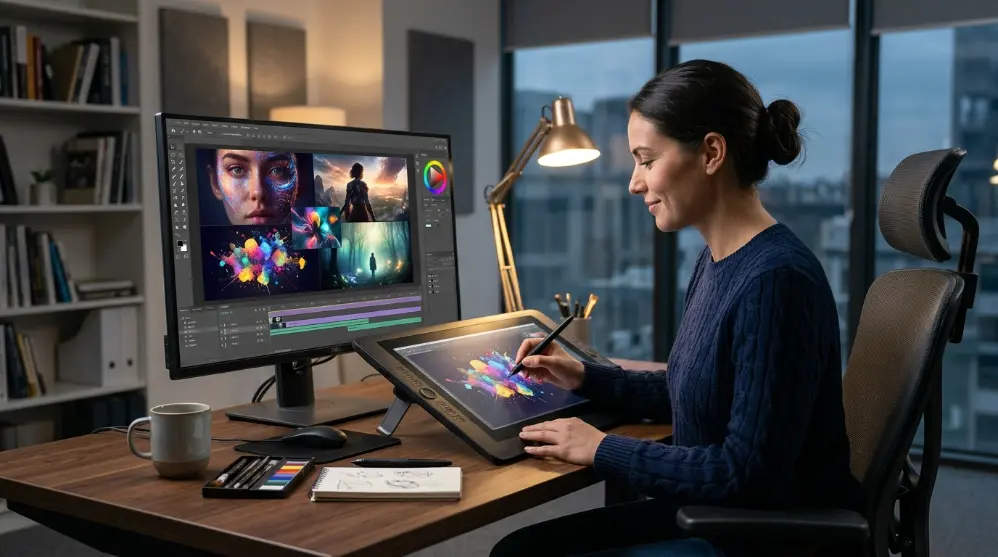
Best for: Creative video work and professional design projects
Adobe Firefly is part of Adobe’s family of AI creative tools. Its video features help users create clips from text prompts or images. It’s a useful option if you already work with Adobe products or want to include AI-generated clips in a larger design project.
You can describe the scene you want, generate a clip, and use it as part of your creative work. Adobe also offers tools for making and editing images, so you can use different AI features during one project.
Main features:
- Text-to-video and image-to-video generation.
- Tools for creating visual effects and creative content.
- Options for adjusting video settings.
- Integration with Adobe’s creative workflow.
- AI image and design tools.
Pros:
- Useful for designers and creative professionals.
- Fits into a wider Adobe workflow.
- Can help create original visual content.
- Offers several AI tools beyond video.
Cons:
- Some features may require a paid plan or credits.
- New users may need time to learn Adobe’s tools.
- AI-generated clips may need extra editing.
Who should use it?
Adobe Firefly is worth considering if you’re a designer, video editor, or content creator who already uses Adobe software. It can help you create extra footage and visual ideas for your projects.
8. Descript
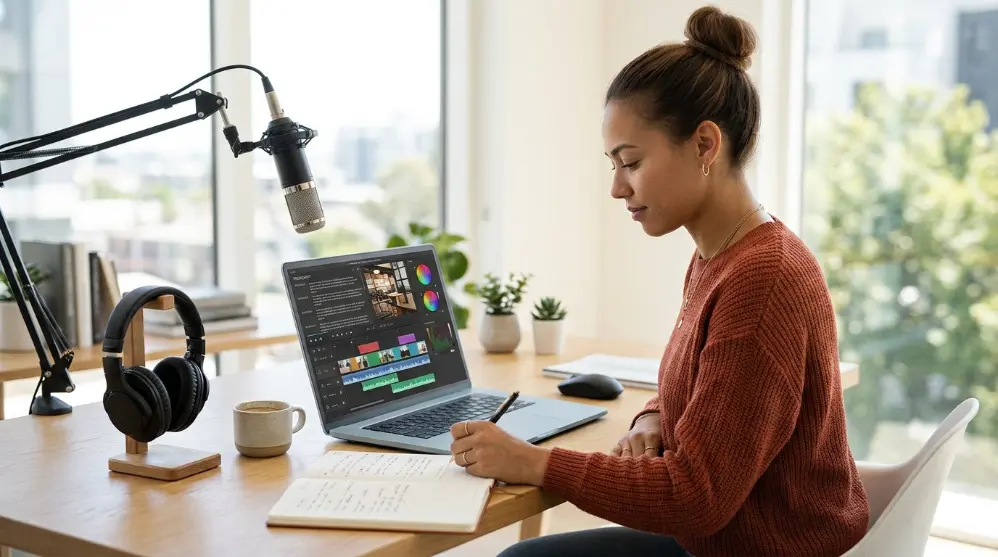
Best for: Editing videos, podcasts, interviews, and tutorials
Descript takes a different approach to AI video creation. Rather than focusing mainly on generating realistic scenes from text, it helps you edit videos by working with their transcripts.
For example, imagine you’ve recorded a 20-minute video. Descript can turn the spoken words into text. You can then edit the transcript to remove parts of the recording. The related video and audio edits follow your changes.
This makes editing easier, especially if you create talking videos, interviews, or podcasts.
Main features:
- Text-based video and audio editing.
- Automatic transcription.
- Tools for removing unwanted words and pauses.
- AI features for improving audio and video.
- Options for creating short clips from longer recordings.
Pros:
- Makes editing spoken content easier.
- Useful for podcasts and interviews.
- Helps save time on basic editing tasks.
- Good for creators who prefer working with text.
Cons:
- Not mainly designed for generating cinematic scenes from prompts.
- Transcripts may need manual correction.
- Some advanced features may depend on your plan.
Who should use it?
Descript is a good choice for YouTubers, podcasters, teachers, and people who publish tutorials or interviews. If you already record videos and want to edit them faster, it’s worth a look.
Quick tip: These tools serve different purposes. Veo and Runway focus more on generated scenes, HeyGen focuses on AI presenters, and Descript focuses on editing recorded content. Before paying for any tool, check its current plans and usage limits. For example, InVideo uses credits for AI generation, and different models can have different credit costs.
9. Pika
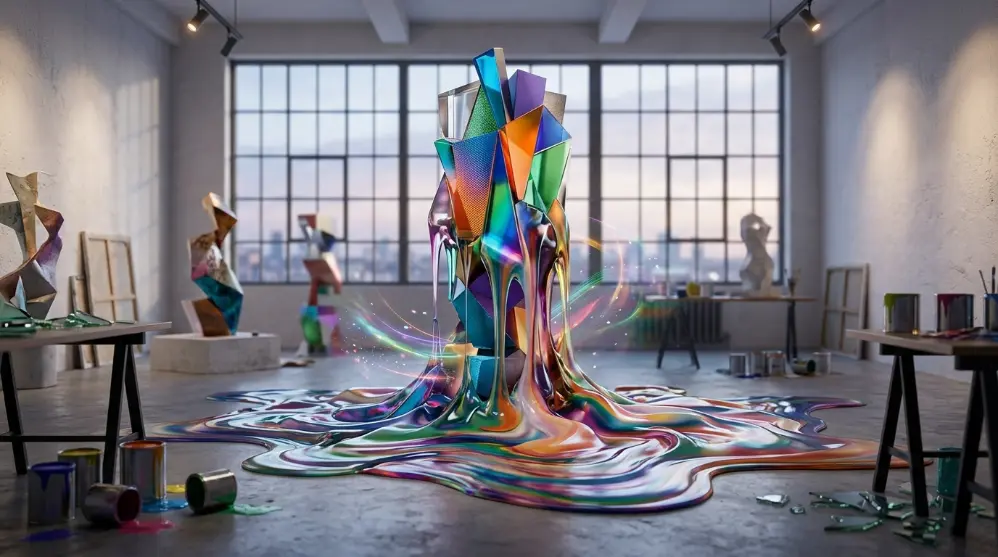
Best for: Short social media videos and creative effects
Pika is an AI video platform made for people who enjoy creating fun and eye-catching videos. You can use a text prompt to create a clip or upload an image and turn it into a moving scene.
One of its interesting features is Pikaffects. It lets you apply creative effects to images and videos. For example, you can make an object look like it’s melting, growing, or changing in an unusual way.
Pika also offers tools for adding elements, changing parts of a clip, and creating motion between images. Its Video Studio supports reference files and multi-shot video workflows, although available options depend on the model you choose. Pika+2
Main features:
- Text-to-video and image-to-video generation.
- Creative effects through Pikaffects.
- Tools for changing or adding video elements.
- Image and video references.
- Video extension and editing options.
Pros:
- Fun tools for creative video ideas.
- Useful for short-form social media content.
- Supports both text and image inputs.
- Offers different effects and editing features.
Cons:
- Some effects may not look natural.
- Credit costs depend on the model and generation type.
- You may need several attempts to get the result you want.
Who should use it?
Pika is worth trying if you create Instagram Reels, TikTok videos, YouTube Shorts, or eye-catching product clips. It’s especially useful when you want something more creative than a normal video.
10. Synthesia

Best for: Business training, educational videos, and professional presentations
Synthesia helps you create videos with AI presenters. Instead of standing in front of a camera, you can write a script and use a digital presenter to deliver your message.
For example, a company can use Synthesia to explain workplace rules, introduce a new product, or train employees. Teachers can also use it to create lessons and explain difficult topics.
This makes it different from tools that focus on cinematic scenes. Synthesia is mainly designed for clear, presenter-style videos.
Main features:
- AI presenters and digital avatars.
- Script-to-video creation.
- Voice and language options.
- Templates for business and training content.
- Video creation for presentations and lessons.
Pros:
- No camera or recording setup is needed.
- Useful for employee training and online lessons.
- Helps create professional-looking presentations.
- Can make video production easier for large teams.
Cons:
- AI presenters may not suit every type of video.
- Some advanced features require a paid plan.
- You may need to edit scripts and pronunciation before publishing.
Who should use it?
Synthesia is a good option for businesses, teachers, HR teams, and online course creators. If your main goal is to explain information with a digital presenter, it’s worth considering.
Quick Comparison of the 10 Best AI Video Generators
Choosing a tool becomes easier when you compare what each one does best.
| AI video generator | Best use |
|---|---|
| Google Veo 3.1 | Realistic scenes with audio |
| Runway | Creative video generation and editing |
| Kling AI | Realistic motion and image-to-video |
| Canva | Simple social media and marketing videos |
| HeyGen | Talking AI avatars |
| InVideo AI | Script-to-video creation |
| Adobe Firefly | Creative projects and design workflows |
| Descript | Editing recorded videos and podcasts |
| Pika | Short videos and creative effects |
| Synthesia | Business training and presentations |
Remember, there isn’t one perfect tool for everyone. The right choice depends on the kind of video you want to create, your budget, and how much editing control you need.
How to Choose the Best AI Video Generator
With so many AI video tools available, it’s easy to feel confused. One tool may be great for realistic scenes, while another may be better for business videos or social media content.
The good news is that you don’t need to try every tool. Start by thinking about what you want to create.
Here are some important things to check before choosing an AI video generator.
1. Decide What Type of Video You Need
First, think about the kind of video you want to make.
Do you want to create a realistic scene from a text prompt? Or do you want an AI presenter to explain something?
Your answer will help you choose the right tool.
For example:
- Realistic video scenes: Try Google Veo 3.1, Runway, or Kling AI.
- Talking AI presenters: Consider HeyGen or Synthesia.
- YouTube and social media videos: Look at InVideo AI or Canva.
- Creative video effects: Try Pika.
- Editing recorded videos: Consider Descript.
Choosing a tool based on your actual needs can save both time and money.
2. Check Video Quality
Video quality matters, especially if you’re creating content for clients or a business.
Look at the details in the generated video. Do faces look natural? Are hands and objects shaped correctly? Does the movement look smooth?
Also, check the resolution options. Some tools offer higher-resolution output, but access may depend on the model or subscription plan.
Don’t choose a tool just because its website shows impressive sample videos. Generate a few clips yourself before paying for a subscription.
3. Look at the Free Plan and Pricing
Many AI video generators use monthly subscriptions or credit-based systems.
Some give you limited free access, while others require payment for most useful features. Also, one video may use more credits than another, depending on its length, model, and settings.
Before buying a plan, check:
- How many credits do you receive?
- How many videos can you generate?
- Do unused credits expire?
- Is HD or 4K export included?
- Are there watermarks?
- Can you use the videos for commercial projects?
Keep in mind that prices and free limits can change. Always check the official pricing page before making a payment.
4. Check Editing Features
Generating a video is only one part of the job. You may also need to cut scenes, add text, change music, or fix small mistakes.
Some tools offer built-in editing features, while others focus mainly on generating clips.
If you want to create complete videos in one place, look for a tool with a timeline editor, text overlays, audio controls, and simple export options.
5. Make Sure It’s Easy to Use
A tool with many features isn’t always the best choice. If you’re a beginner, a simple interface can make a big difference.
Look for features such as:
- Ready-made video templates.
- Simple text prompts.
- Easy image uploads.
- Clear editing controls.
- Quick video previews.
- Easy download options.
Canva and InVideo AI are good starting points if you want a simple workflow. Runway and Adobe Firefly may be better if you want more creative control.
If you’re interested in building your own software with AI, read our guide on what is vibe coding to learn how AI tools can turn simple instructions into working websites and applications.
6. Check Commercial Usage Rights
If you plan to use AI videos for clients, advertisements, or business websites, don’t skip this step.
Read the tool’s terms before publishing your videos. Check whether your plan allows commercial use and whether there are any restrictions on generated content.
Also, be careful when using real people’s faces, voices, logos, or copyrighted material. Having access to an AI tool doesn’t automatically give you permission to use someone else’s content.
Best AI Video Generator for Different Needs
Still not sure which tool to choose? Here’s a simple guide based on common needs.
| Your goal | Tool to consider |
|---|---|
| Realistic AI video scenes | Google Veo 3.1 |
| Creative filmmaking | Runway |
| Image-to-video creation | Kling AI |
| Beginner-friendly video editing | Canva |
| AI spokesperson videos | HeyGen |
| YouTube videos from scripts | InVideo AI |
| Design and video projects | Adobe Firefly |
| Podcast and interview editing | Descript |
| Creative social media effects | Pika |
| Employee training videos | Synthesia |
These are starting recommendations, not a guarantee that one tool will always produce the best result. Try the same prompt in two or three tools and compare the output.
Can You Make AI Videos for Free?
Yes, you can try some AI video generators without paying. However, free access often comes with limits.
For example, a free plan may offer a small number of generations, lower video quality, watermarks, or fewer editing features. Some platforms also change their free credit limits over time.
If you’re just starting, there’s no need to buy an expensive subscription right away. Try the available free features first. Once you understand what you need, you can decide whether a paid plan is worth it.
How to Write Better Prompts for AI Video Generators
The quality of an AI-generated video often depends on the prompt you write. A short prompt can work, but a clear and detailed prompt gives the AI more information about what you want.
You don’t need to use complicated words. Just explain the subject, action, location, camera movement, and visual style.
A Simple Formula for AI Video Prompts
Try using this structure:
Subject + Action + Location + Camera Movement + Visual Style
For example, instead of writing:
“A dog running.”
Write:
“A golden retriever running through a green park on a sunny morning, the camera follows the dog from a low angle, realistic lighting, smooth cinematic movement.”
The second prompt gives the AI a much clearer idea of the scene.
5 AI Video Prompts You Can Try
Here are some simple examples you can copy and test in your preferred AI video generator.
1. Nature video
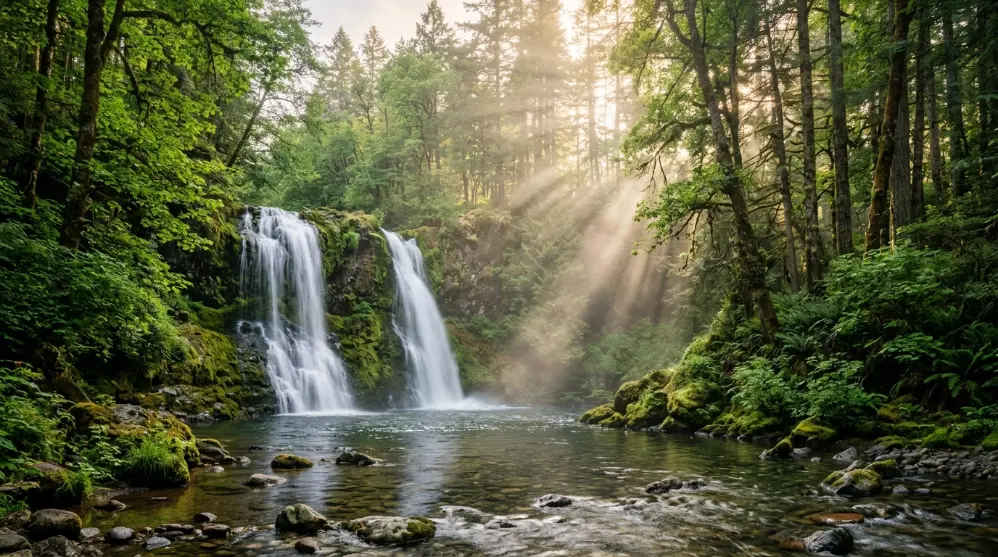
“A beautiful waterfall flowing through a green forest, sunlight passing between the trees, gentle camera movement, realistic water and natural colors, cinematic video.”
2. Product advertisement

“A premium perfume bottle standing on a black stone surface, soft golden light, slow camera movement around the bottle, luxury product advertisement, realistic details.”
3. Food video

“A fresh cheeseburger on a wooden table, melted cheese slowly dripping over the patty, close-up camera shot, warm restaurant lighting, realistic food commercial.”
4. Travel video

“A peaceful mountain lake at sunrise, snow-covered mountains in the background, soft clouds moving across the sky, slow aerial camera movement, cinematic travel footage.”
5. Social media video

“A barista pouring steamed milk into a fresh cup of coffee, close-up shot of latte art, cozy modern coffee shop, smooth camera movement, vertical social media video.”
These examples are starting points. Change the subject, location, lighting, or camera movement to match your own idea.
Tips for Getting Better AI Video Results
Even a good AI video generator may not understand your idea perfectly on the first try. Don’t worry. A few small changes can make a big difference.
Keep these tips in mind:
- Be specific: Describe what you want to see instead of using very general words.
- Keep one main action: Avoid asking for too many things to happen in one short clip.
- Describe the camera: Mention whether you want a close-up, wide shot, or slow camera movement.
- Choose a visual style: You can ask for realistic, cinematic, animated, or documentary-style footage.
- Check the result: Watch the video carefully before downloading or publishing it.
- Improve your prompt: If the first result isn’t right, change a few words and generate another version.
One more thing: AI tools can sometimes create strange faces, extra fingers, incorrect text, or objects that change shape. Always review the final video, especially when creating content for a business.
Common Mistakes to Avoid When Using AI Video Generators
AI video creation can be fun, but beginners often make a few mistakes. Avoiding them can help you get better results and save credits.
1. Writing Very Short Prompts
A prompt like “make a video about a car” doesn’t explain much. The AI has to guess the setting, movement, camera angle, and style.
Add useful details so the tool understands your idea.
2. Expecting a Perfect Video on the First Try
AI video generation isn’t always predictable. Sometimes the video looks great, but other times the movement or details may be wrong.
Generate a few versions and choose the one that best matches your idea.
3. Ignoring Video Length and Format
A video for YouTube may need a different format from an Instagram Reel or TikTok clip.
Before generating, decide where you’ll publish the video. Check whether the tool supports the aspect ratio and length you need.
4. Paying for a Plan Too Early
Don’t buy a subscription just because a tool looks impressive. First, test its features and understand its credit system.
For example, check how many credits a typical video generation uses. This helps you estimate the real cost of creating videos every month.
5. Publishing Without Reviewing
Never assume an AI-generated video is ready to publish. Watch it from beginning to end.
Check the visuals, sound, spelling, voiceover, and scene changes. If something looks wrong, edit it before sharing.
Frequently Asked Questions
What is the best AI video generator in 2026?
There isn’t one perfect choice for everyone. Google Veo 3.1, Runway, and Kling AI are worth considering for generated video scenes. HeyGen and Synthesia are useful for talking AI presenters, while Canva and InVideo AI are good options for simpler content creation.
Which AI video generator is best for beginners?
Canva and InVideo AI are good starting points because they offer simple video creation and editing workflows. Beginners can also try Pika to explore creative video effects.
Can AI generate videos from text?
Yes. Many AI video generators support text-to-video features. You write a description of the scene, and the tool creates a video based on your prompt.
Which AI video generator offers the best video quality?
Google Veo 3.1, Runway, and Kling AI are strong options for creating realistic video scenes. However, the final quality depends on your prompt, selected model, settings, and video type.
Is there a free AI video generator with no watermark?
Some AI video tools offer free access, but their limits can change. Watermarks, export quality, and monthly credits depend on the platform and plan. Always check the free plan details before creating your videos.
Can I use AI-generated videos for YouTube?
Yes. You can use AI-generated videos for YouTube, including educational videos, product reviews, tutorials, and entertainment content. However, make sure you follow YouTube’s rules, respect copyright, and disclose realistic altered or synthetic content when required.
Which AI video generator is best for YouTube videos?
InVideo AI is worth considering if you want to turn scripts into complete videos. Runway and Veo 3.1 can help create original scenes, while Descript is useful for editing recorded videos and podcasts.
Can AI video generators create videos from images?
Yes. Many tools support image-to-video generation. You upload a picture, write a prompt explaining the movement you want, and the AI creates a video based on that image.
Kling AI, Runway, Pika, and Veo 3.1 are options to explore for this purpose.
Are AI-generated videos good enough for professional use?
They can be useful for professional projects, but the results still need human review. You may need to fix visual errors, adjust sound, add branding, or edit scenes before publishing.
For business use, also check the platform’s commercial usage terms.
How long does it take to generate an AI video?
It depends on the tool, model, video length, and settings. Some short clips may take only a few minutes, while more complex generations can take longer. Busy servers may also affect generation time.
Do I need video editing skills to use AI video generators?
No. Many tools are designed for beginners. You can create videos using text prompts, images, and ready-made templates. However, basic editing skills can help you improve the final result.
Final Thoughts: Which AI Video Generator Should You Choose?
The best AI video generator depends on what you want to create. If you need realistic scenes, Google Veo 3.1, Runway, and Kling AI are worth exploring. For talking presenters, HeyGen and Synthesia offer useful features. If you want simple videos for social media or YouTube, Canva and InVideo AI can make the process easier.
You don’t have to choose the most expensive tool or the one with the longest feature list. Start with your main goal, test a few options, and see which one gives you the results you need.
And remember, AI is a tool to support your creativity, not replace it. Your ideas, storytelling, and editing choices still matter.
Start with a simple prompt, create your first video, and improve it as you learn. You might be surprised by what you can make!